Virtual Machines (VMs) serve as the backbone of cloud computing in Microsoft Azure, offering unparalleled flexibility for deploying and managing workloads. Whether you're optimizing resources for cost efficiency, scaling to meet demand, or enhancing security configurations, effective VM management is crucial for any cloud environment.
This step-by-step guide walks you through four essential VM operations in Azure: migrating to a new subnet, vertical scaling, disk management, and configuring auto-shutdown - complete with visual references to ensure you can follow along seamlessly in the Azure portal.
Step 1 Move the virtual machine network to the new subnet
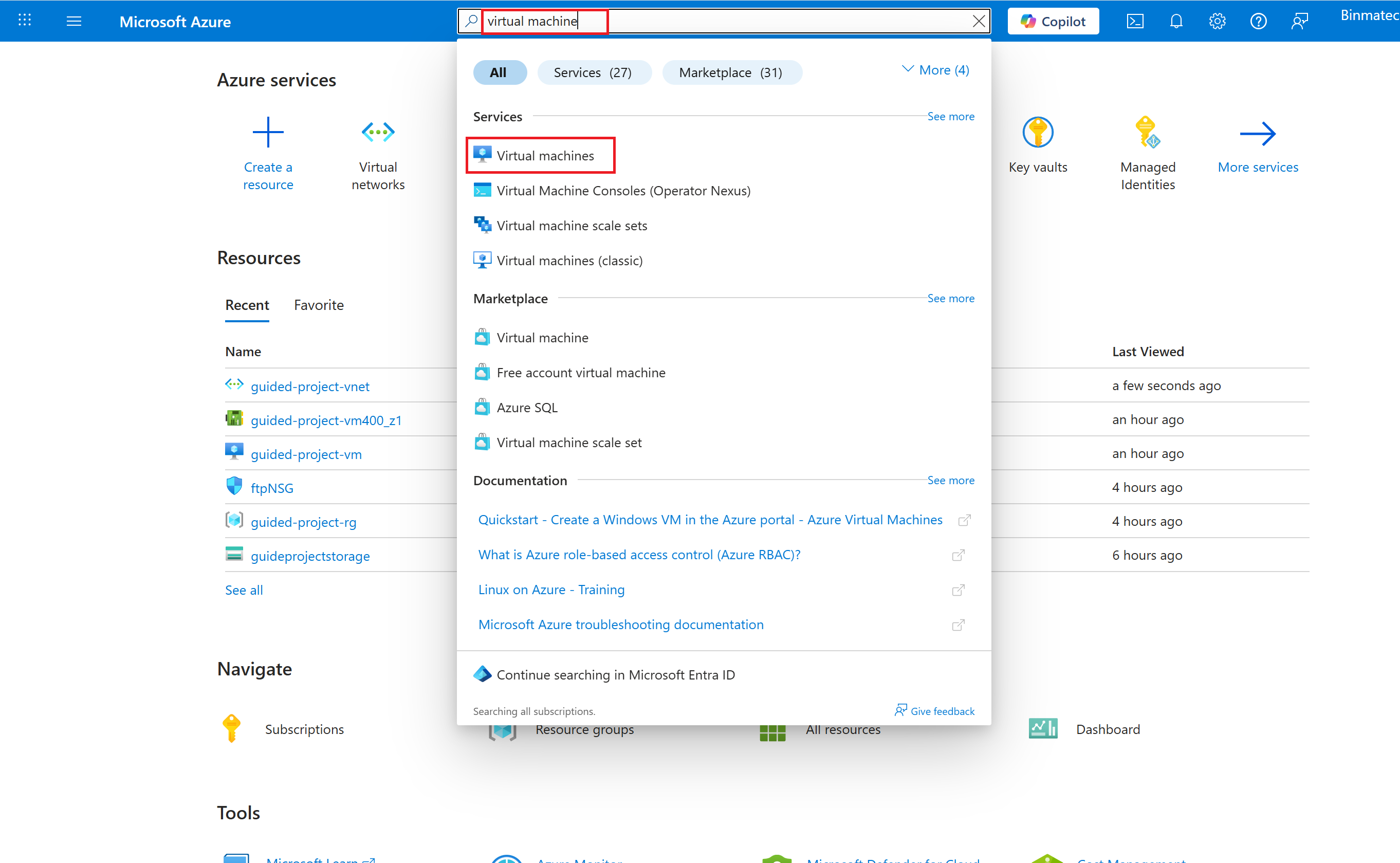
- From the Azure portal home page, in the search box, enter virtual machines.
- Select virtual machines under services.
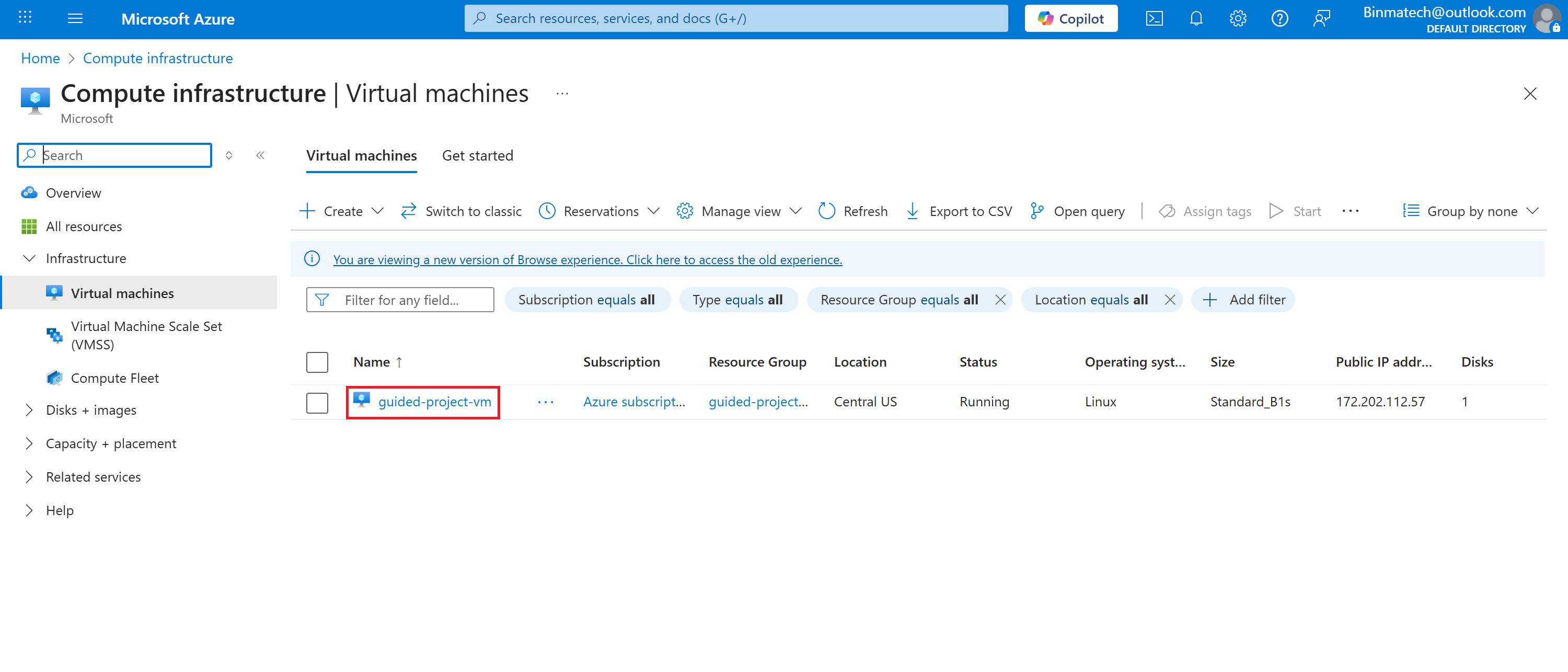
- Select the guided-project-vm virtual machine.
- If the virtual machine is running, select Stop.
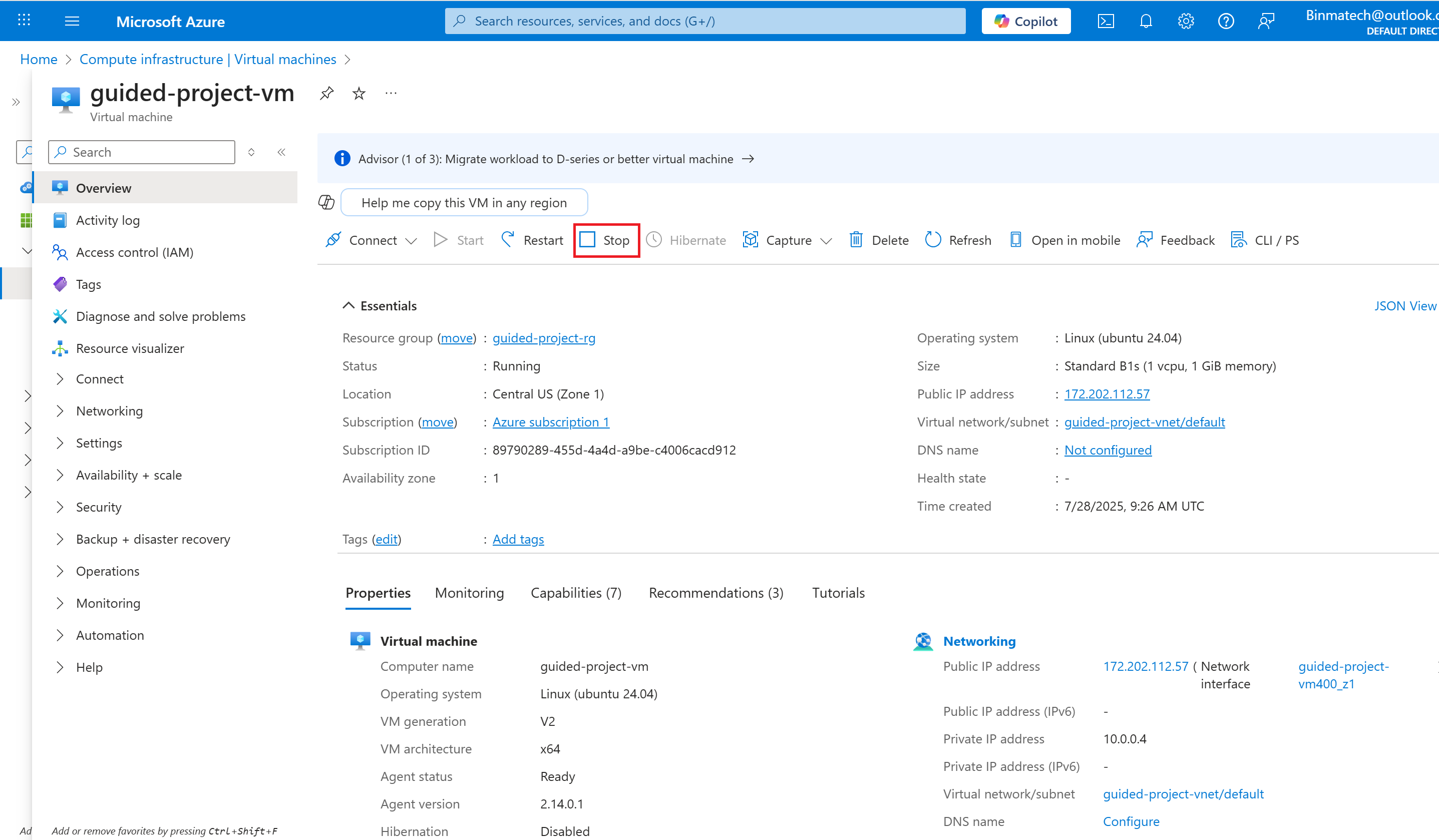
Note: In order to make some configuration changes, such as changing the subnet, the VM will need to be restarted. You can request the change without stopping the VM, but Azure will force a restart before completing the change.
- Wait for the Status field to update and show Stopped (deallocated)
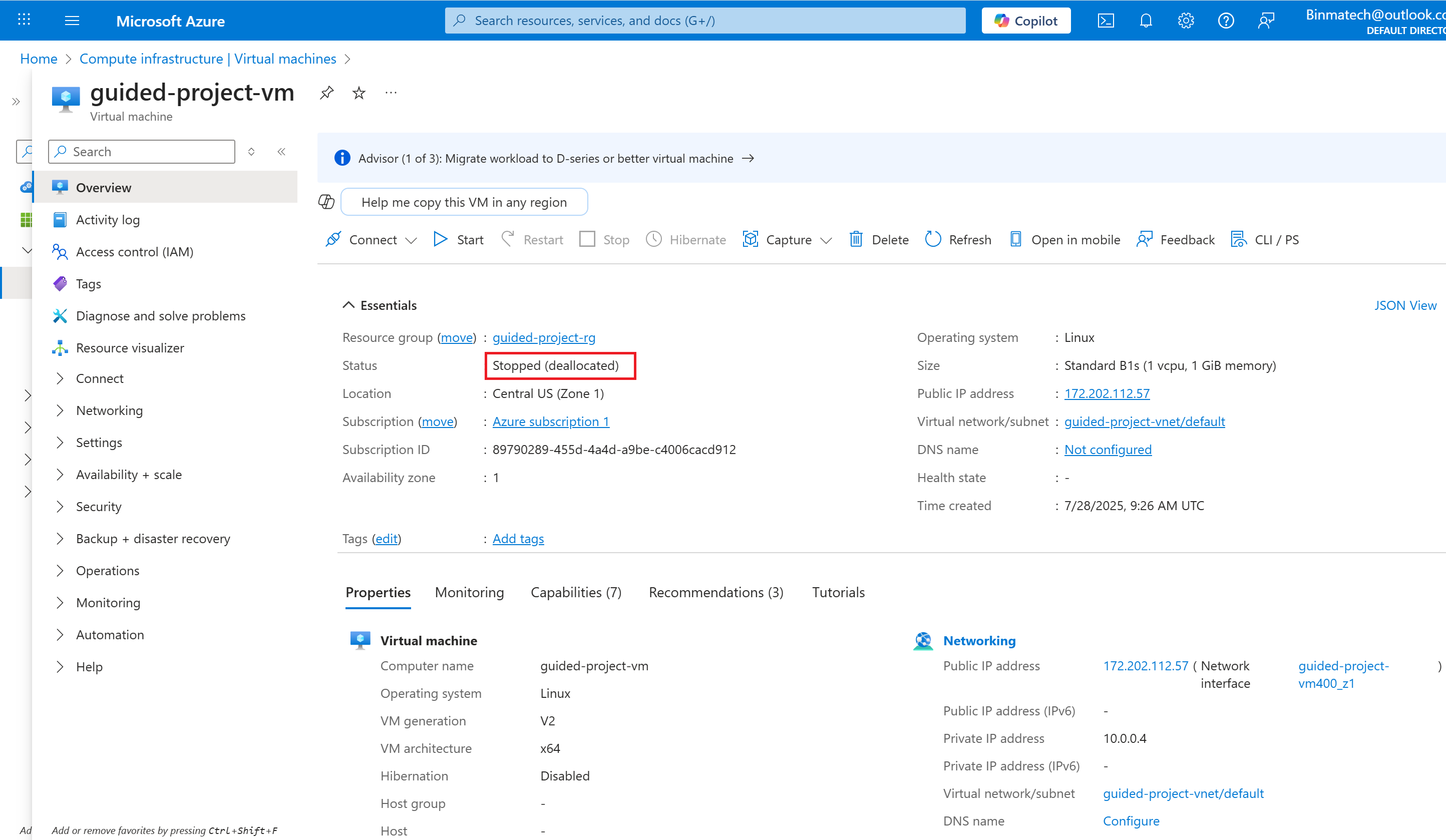
- Within the Networking subsection of the menu, select Network settings.
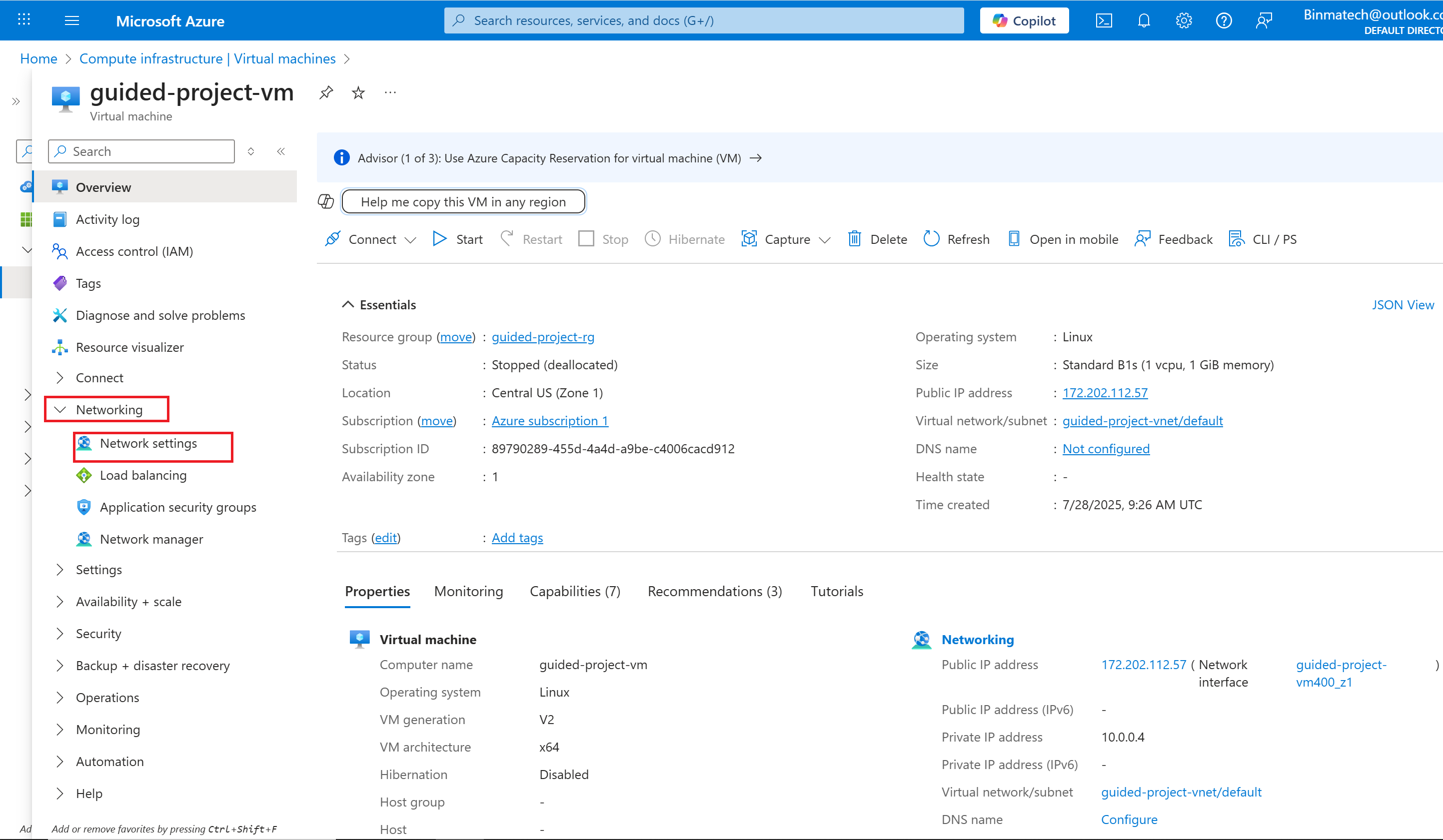
- Select the Network interface / IP configuration hyperlink for the VM.
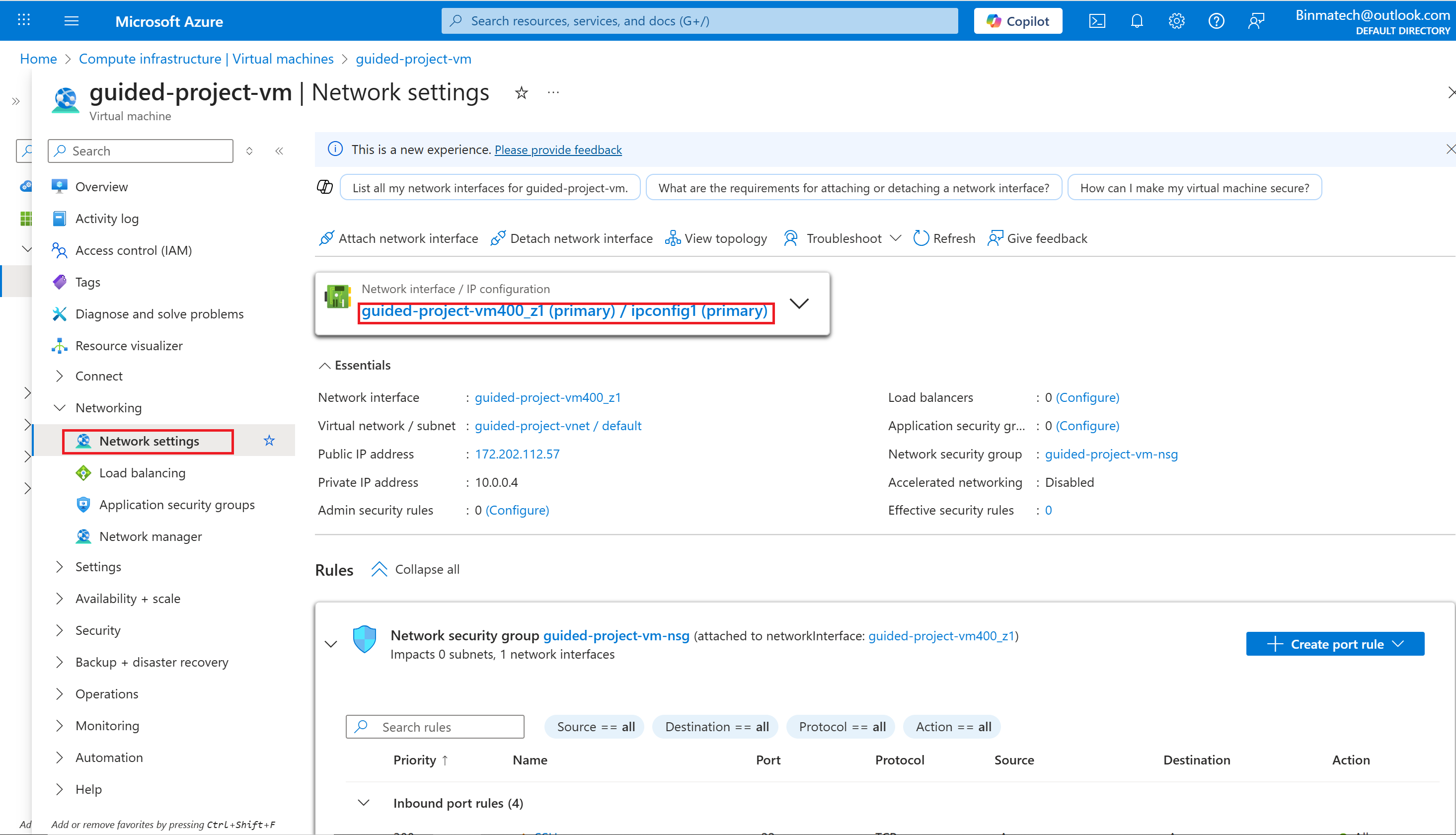
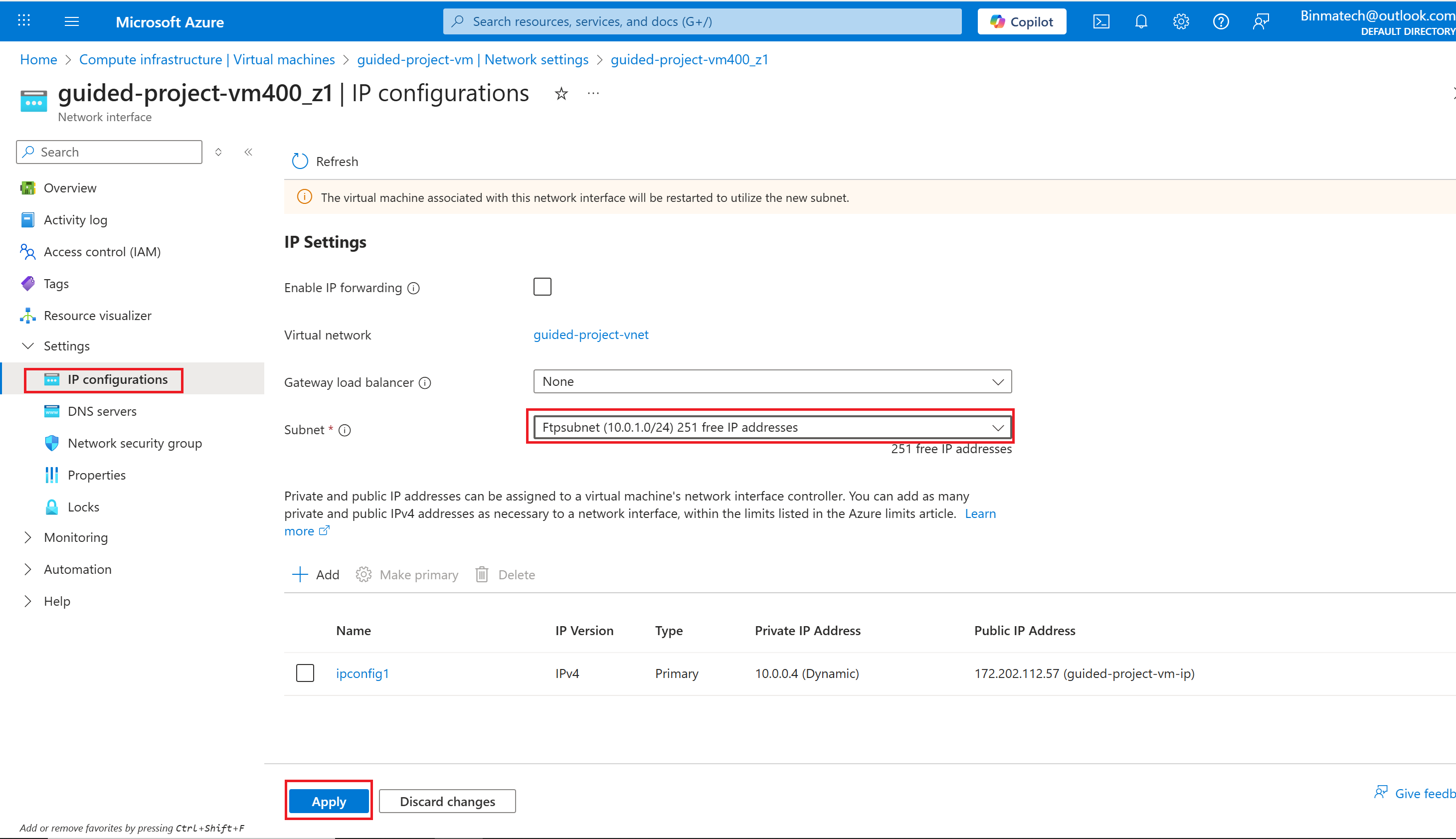
- On the IP Configurations page, update the Subnet to ftpSubnet.
- Select Apply.
- Select Home to return to the Azure portal home page.
Step 2 Vertically scale the virtual machine
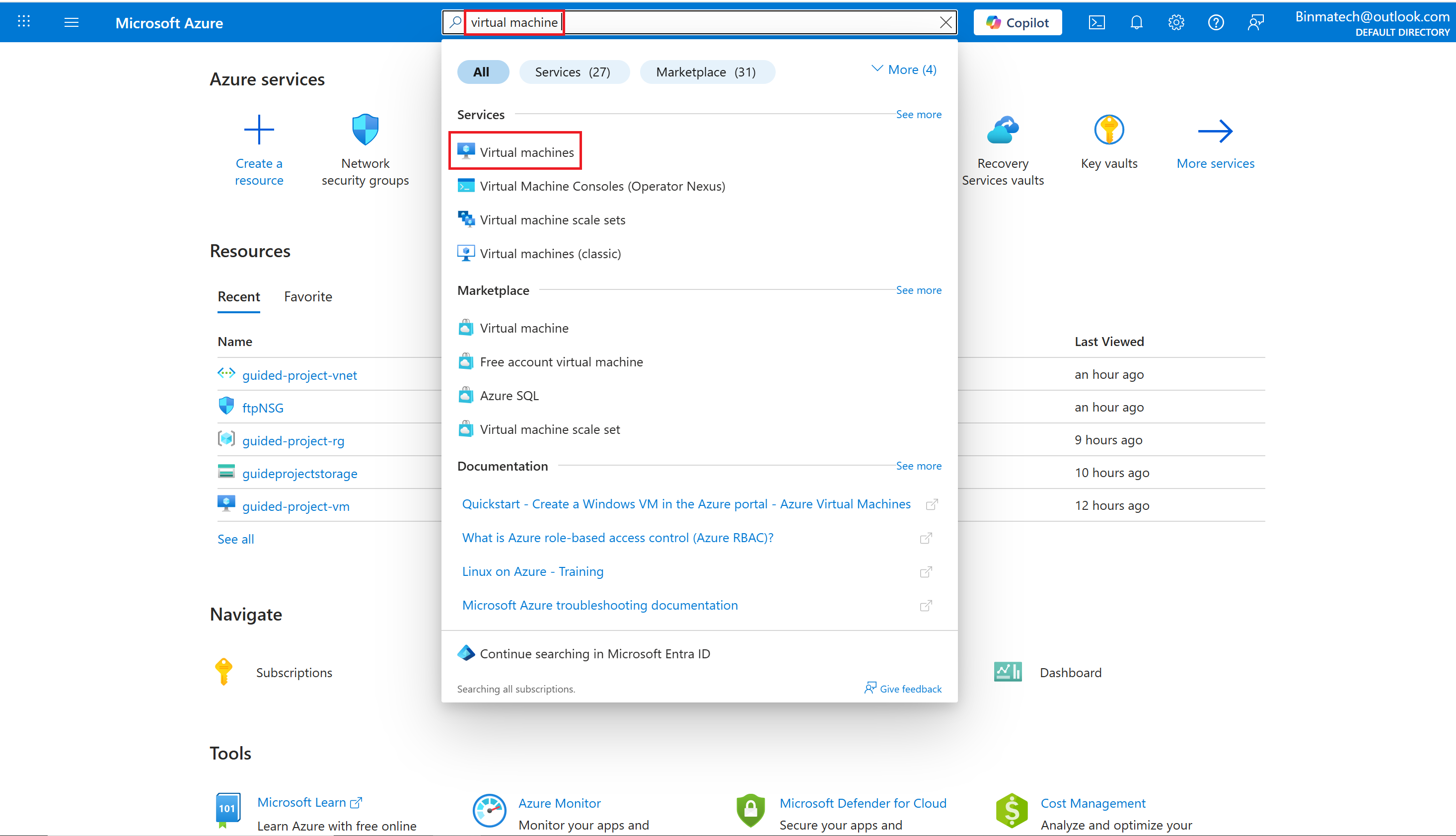
- From the Azure portal home page, in the search box, enter virtual machines.
- Select virtual machines under services.
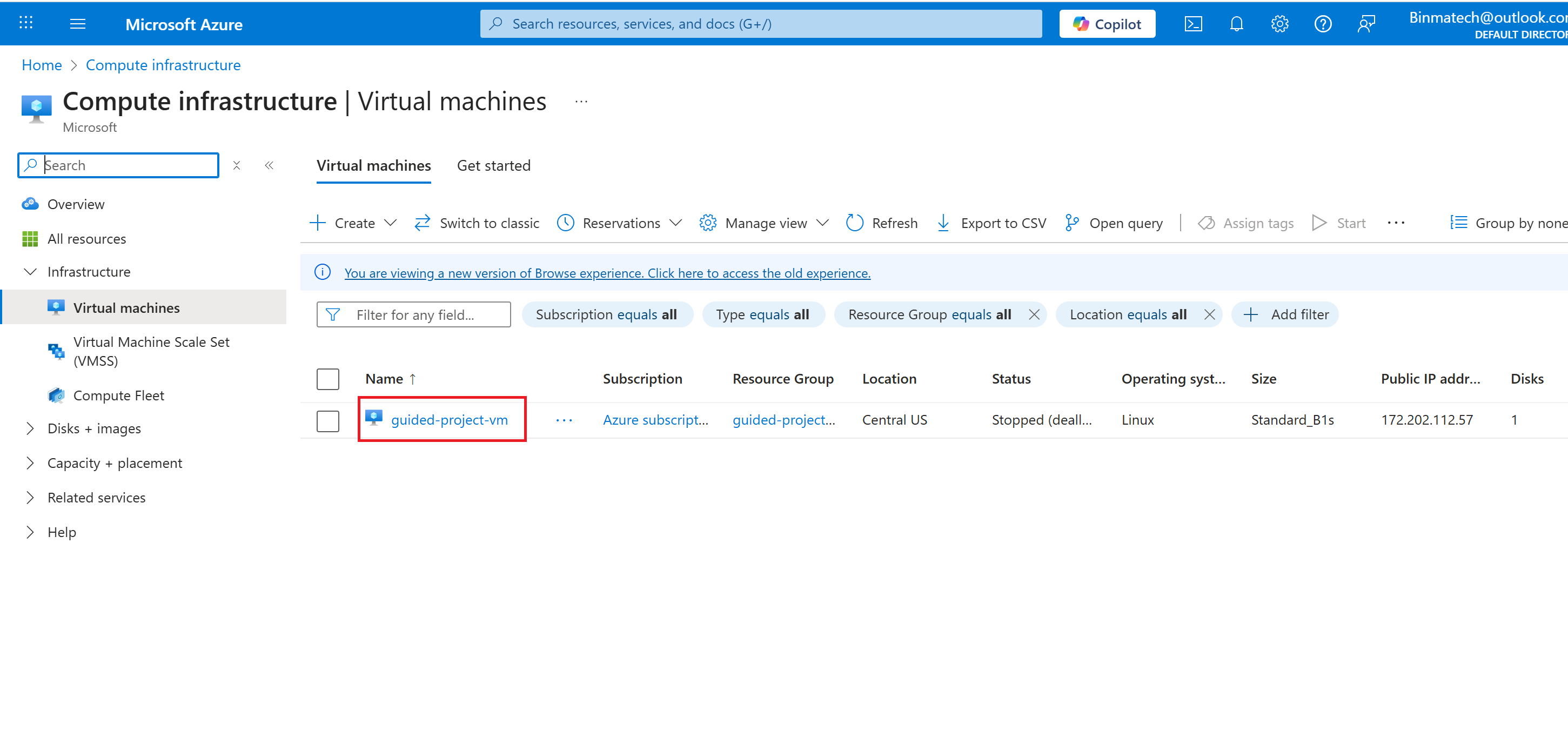
- Select the guided-project-vm virtual machine.
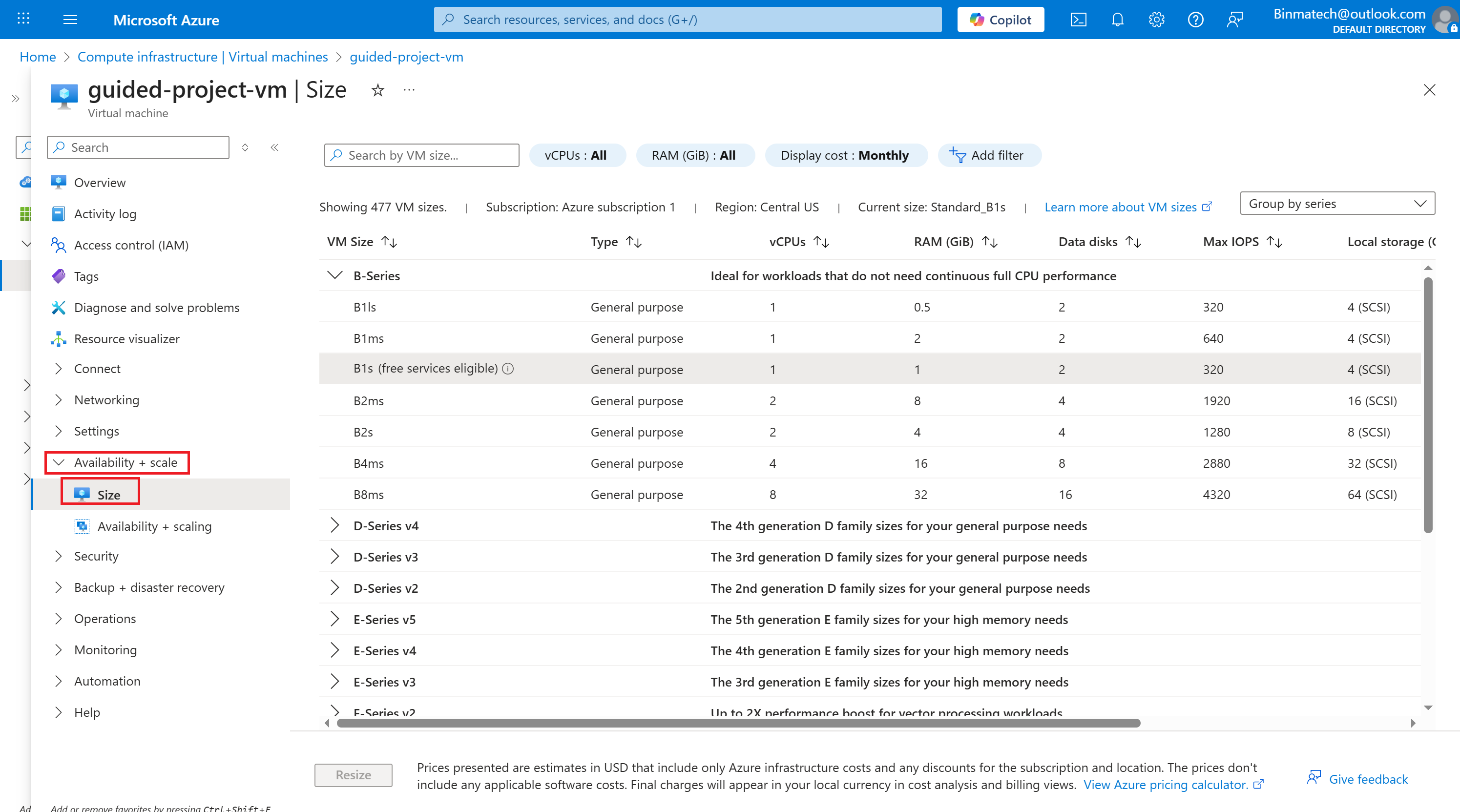
- Locate the Availability + scale submenu and select Size.
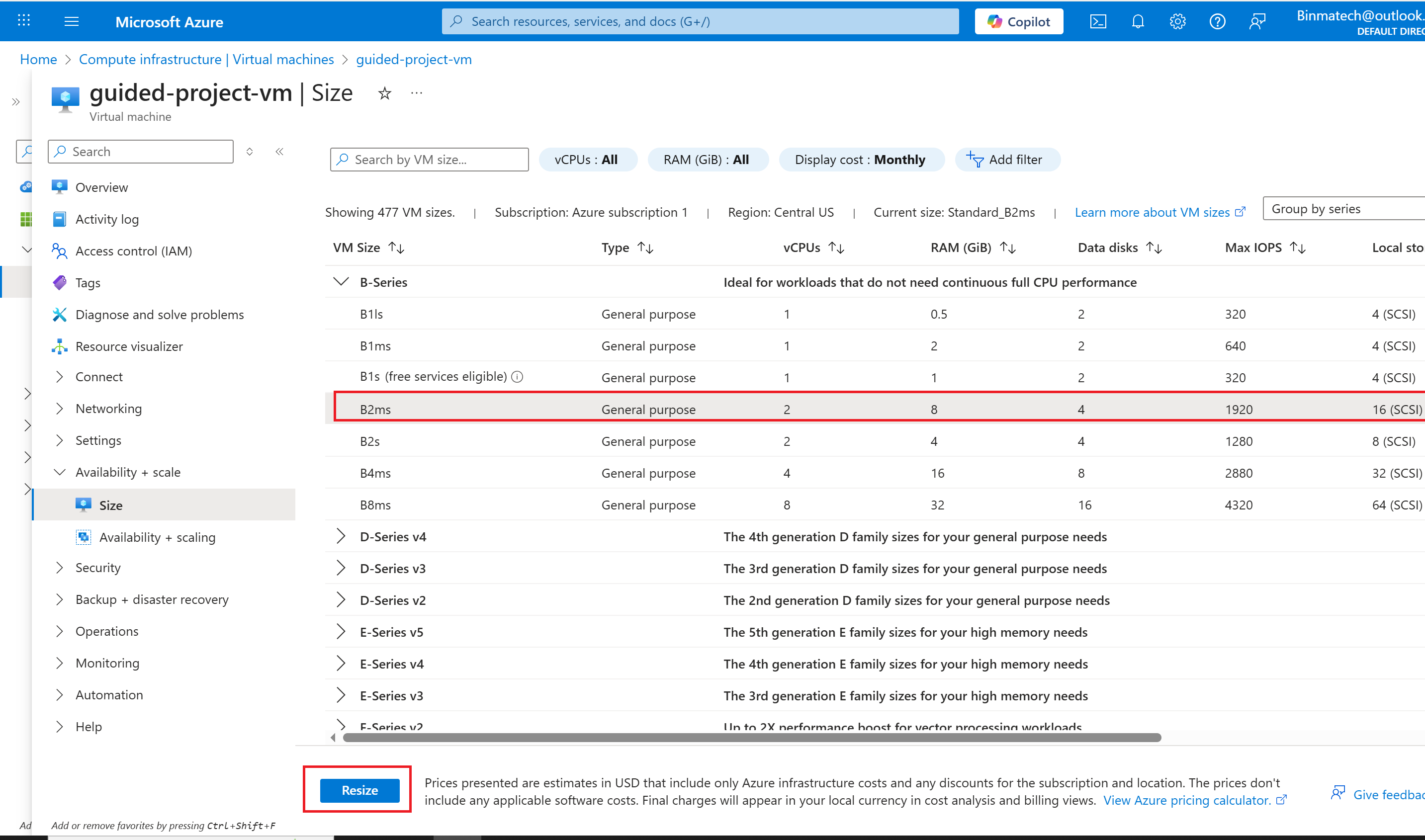
- Select a new VM size D2s_v5 for example. (Note: If you don’t see the same size as shown in this exercise, select something similar.)
- Select Resize.
Step 3 Attach data disks to a virtual machine
- From the Azure portal home page, in the search box, enter virtual machines.
- Select virtual machines under services.
- Select the guided-project-vm virtual machine.
- Locate the settings submenu and select Disks.
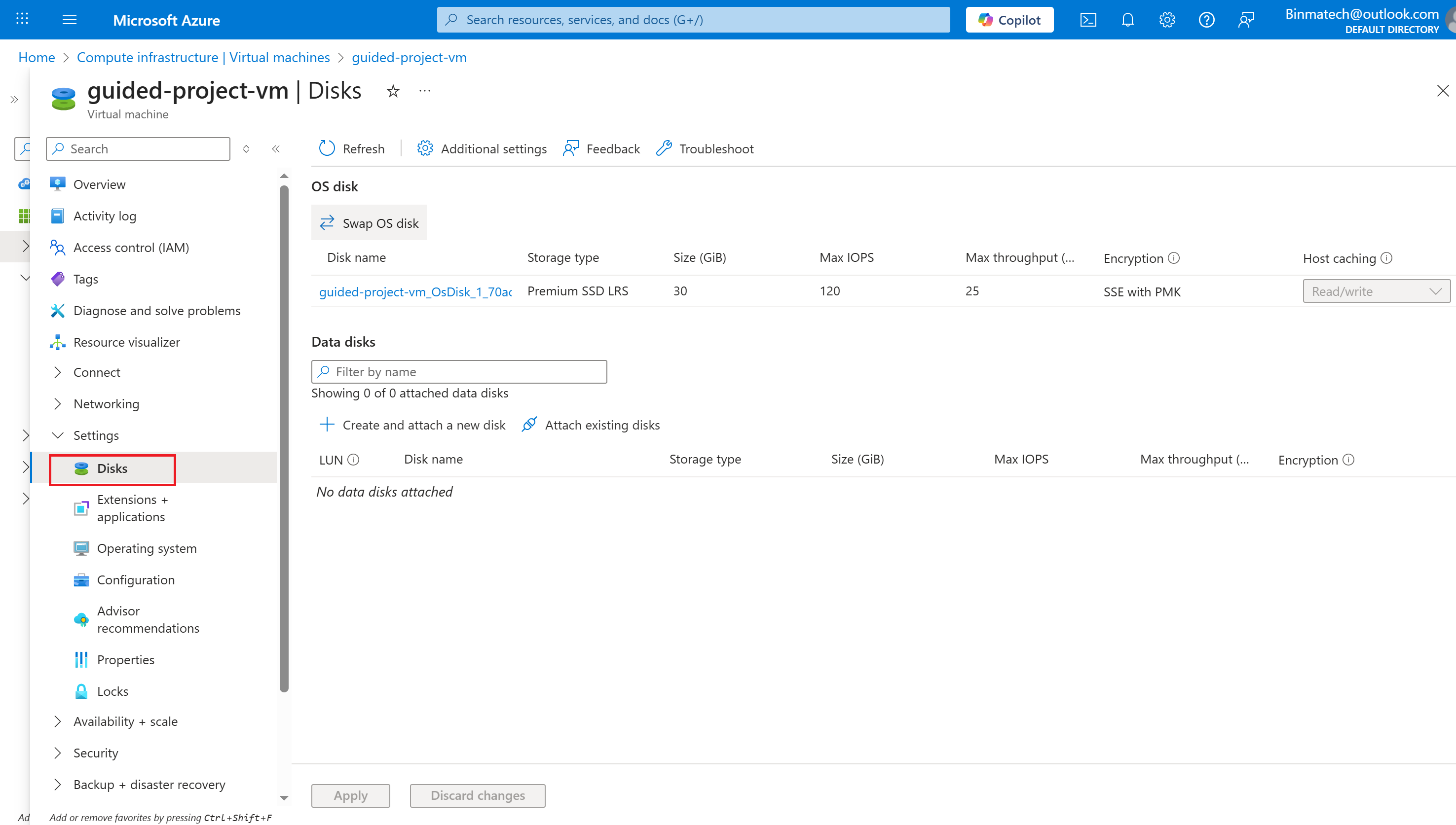
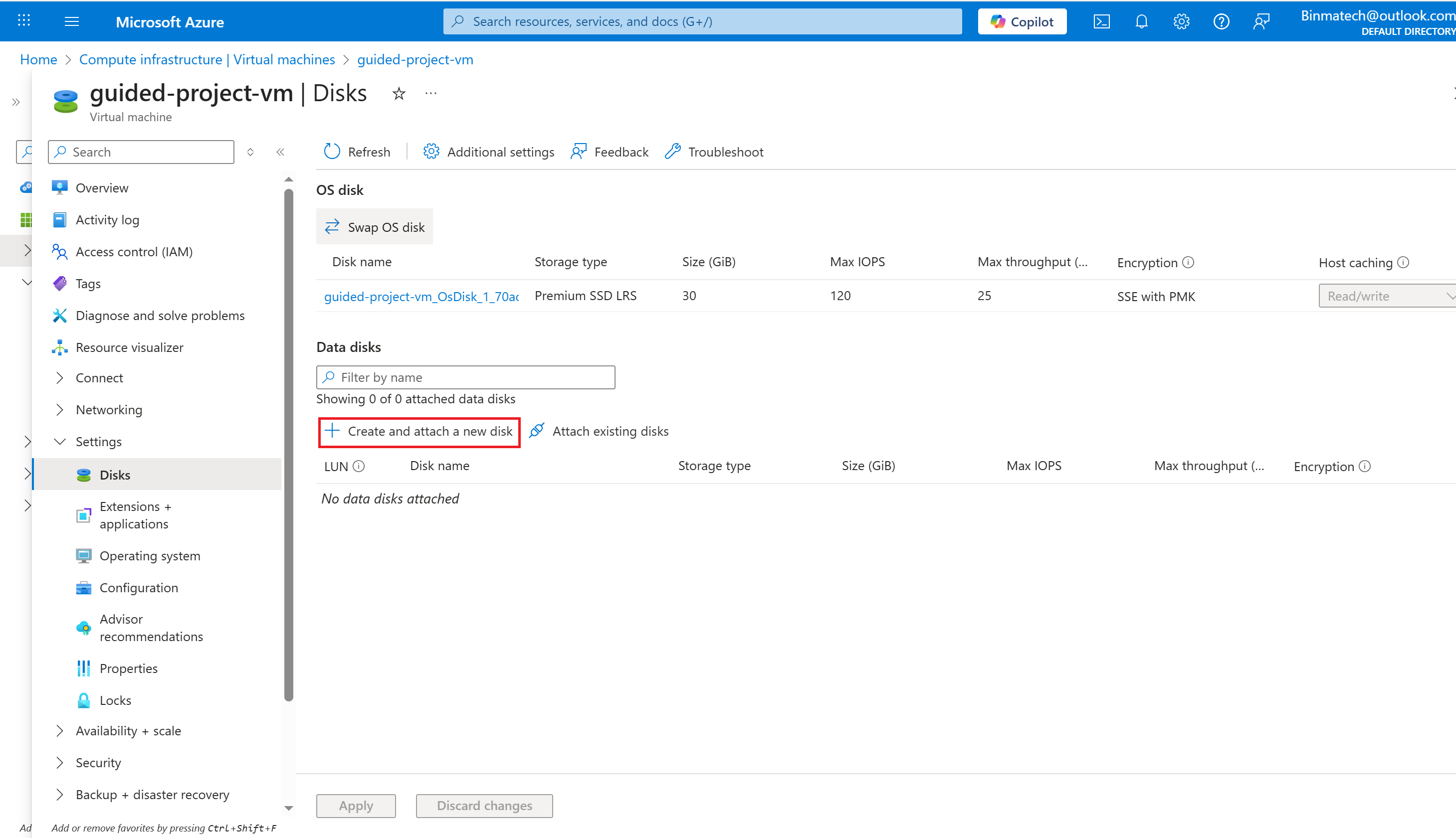
- Select Create and attach a new disk.
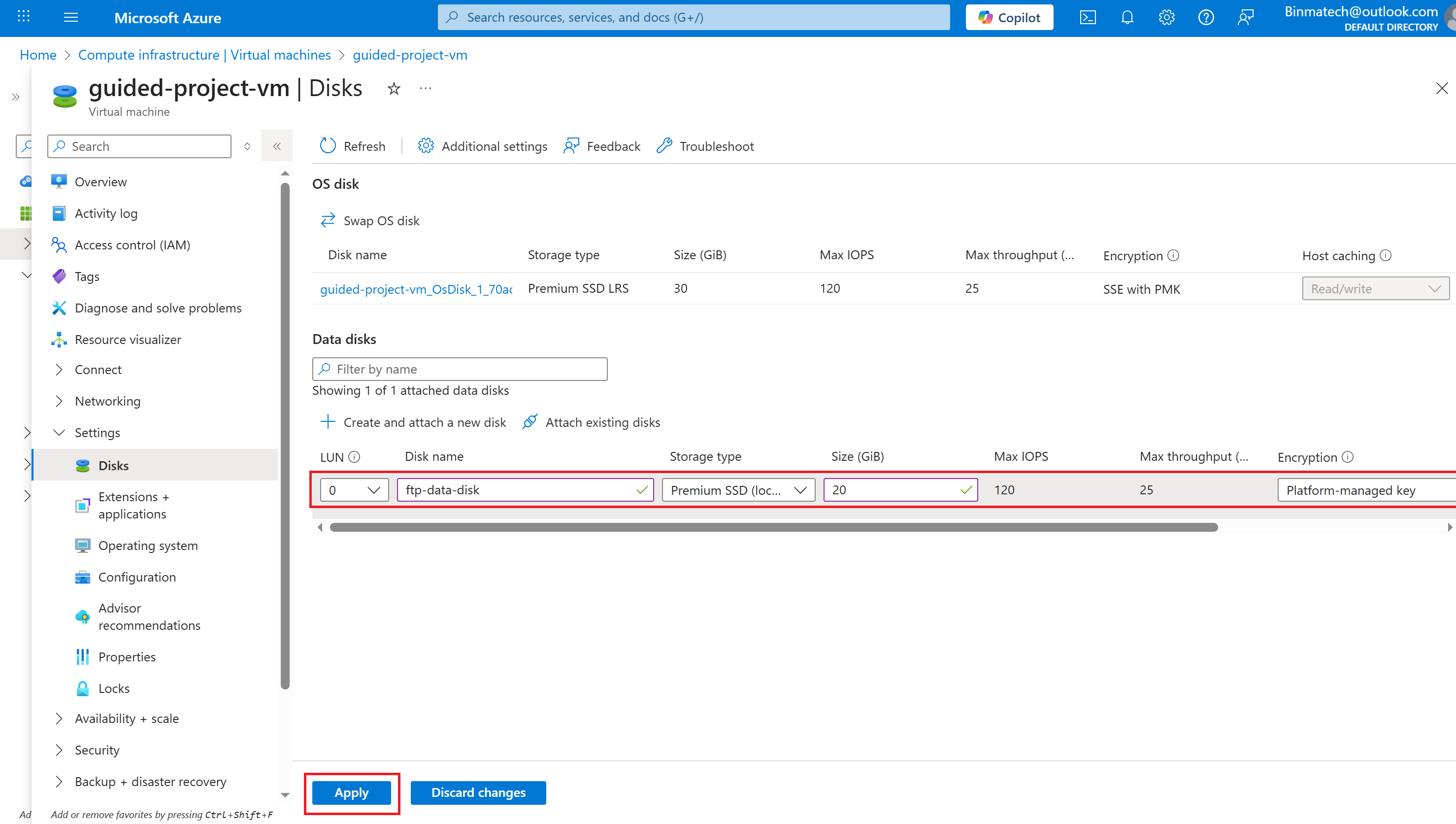
- Leave LUN as default.
- Enter ftp-data-disk for the Disk name.
- Leave the Storage type as default.
- Enter 20 for the Size.
- Select Apply to create the new storage disk and attach the disk to the machine.
- From the Azure portal home page, in the search box, enter virtual machines.
- Select virtual machines under services.
- Select the guided-project-vm virtual machine.
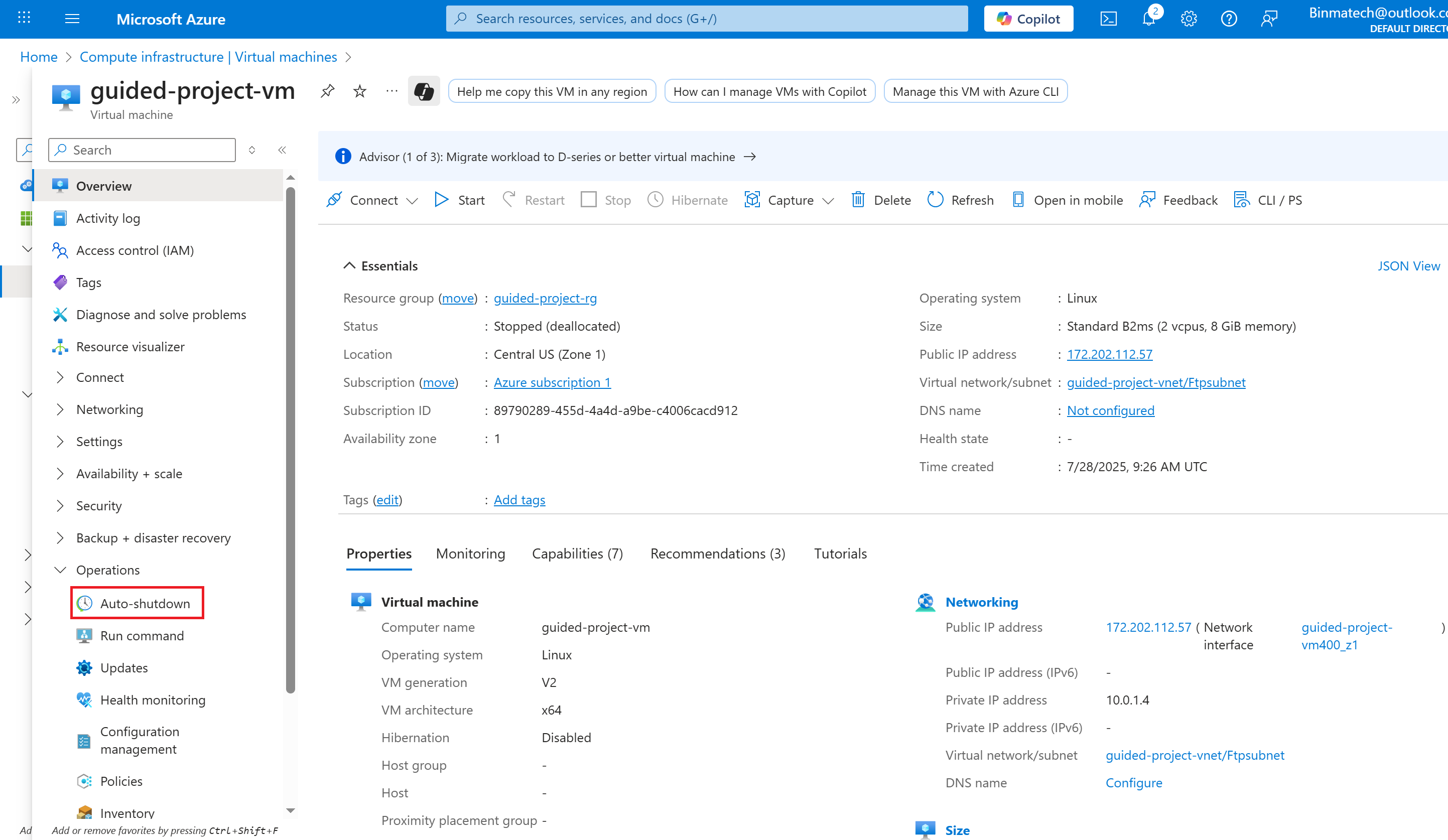
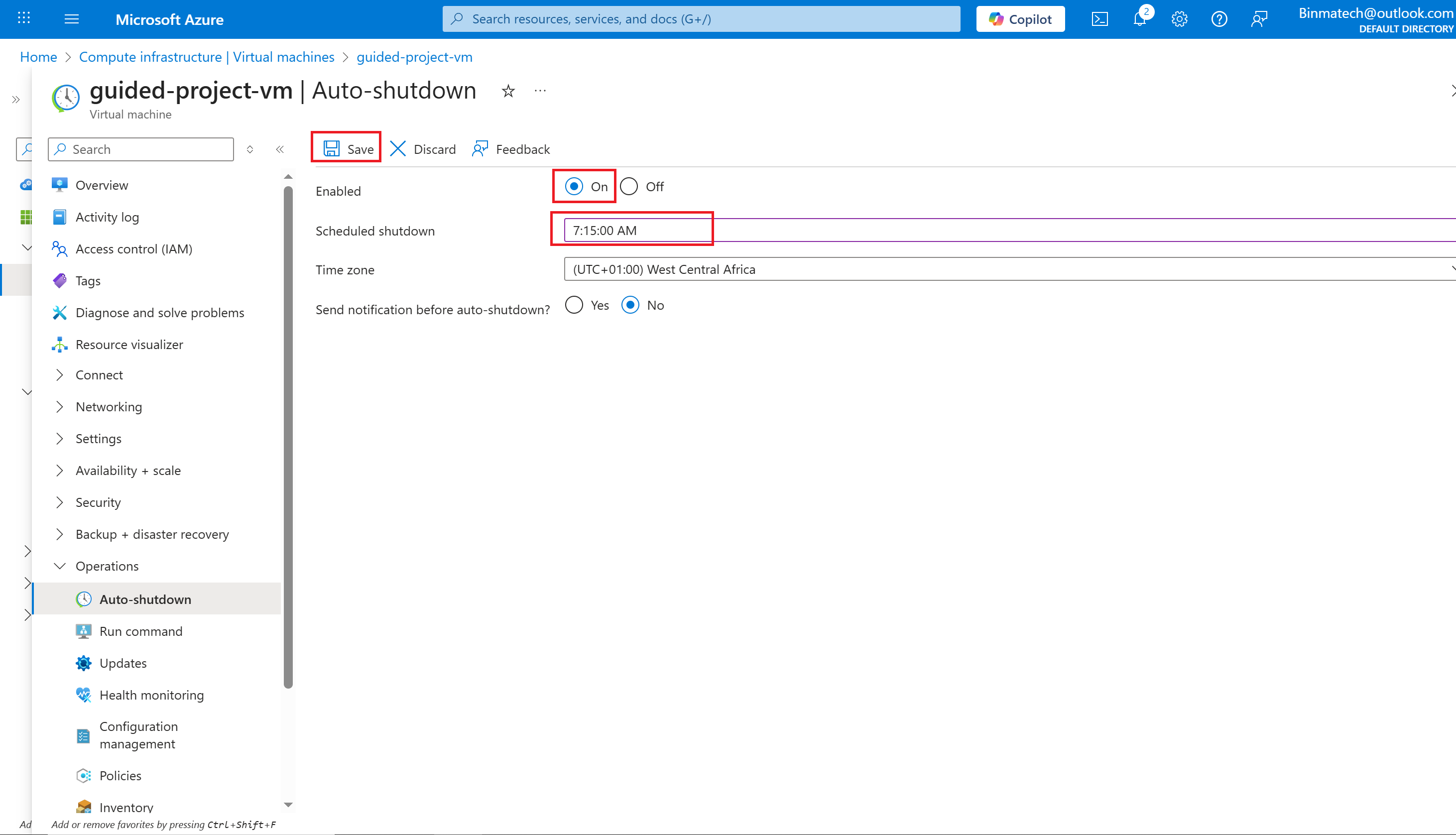
- Under the Operations submenu, select Auto-shutdown.
- In order to let late uploads finish, set the Scheduled shutdown to 7:15:00 PM.
- Select Save.
Conclusion
By mastering these fundamental VM management techniques - subnet migration, vertical scaling, disk attachment, and auto-shutdown configuration - you've taken important steps toward optimizing both performance and costs in your Azure environment. Remember that proper VM management is an ongoing process that balances resource allocation, security requirements, and operational efficiency. As you continue working with Azure VMs, consider exploring additional optimization strategies like horizontal scaling, availability sets, and advanced monitoring to further enhance your cloud infrastructure. These foundational skills will serve you well as you build more complex solutions in Microsoft's cloud platform.
