Adding tags to resources is a quick way to be able to group and organize resources. Tags can be added at different levels, giving you the ability to organize and group resources at a level that makes sense for you.
In this lab exercise, you will learn how to effectively manage Azure resources by implementing tags and resource locks. Tags help organize and categorize resources for better tracking and cost management, while resource locks prevent accidental modifications or deletions of critical assets.
By the end of this exercise, you will have hands-on experience in:
- Adding and managing tags for resource organization.
- Applying resource locks to prevent accidental deletions.
- Enhancing resource governance and monitoring in Azure.
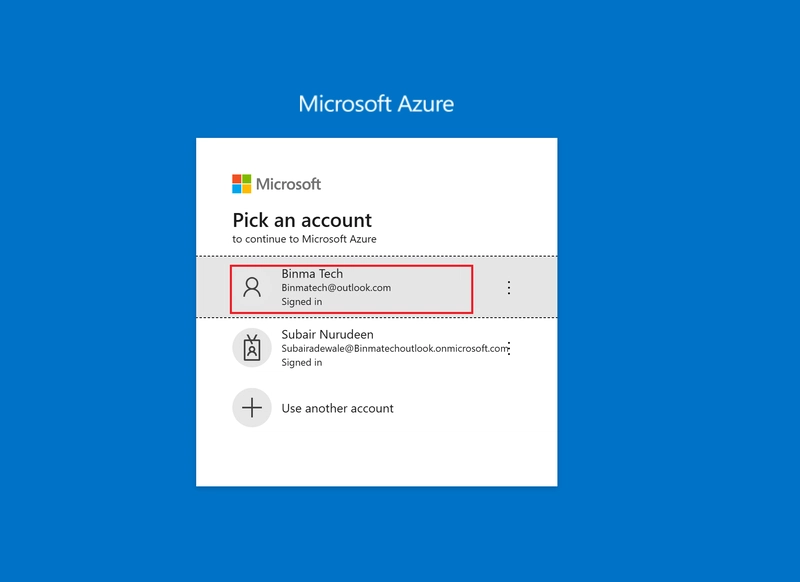
- Let’s get started by logging into the Azure portal and applying these configurations.
You’ll start by adding a pair of tags to the virtual machine. One tag will be to identify the purpose of the virtual machine and the other will be to indicate the department the machine supports.
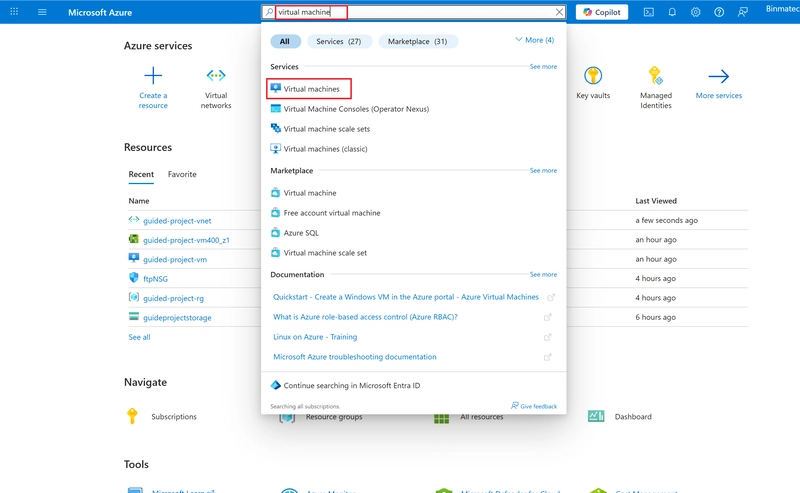
- From the Azure portal home page, in the search box, enter virtual machines.
- Select virtual machines under services.
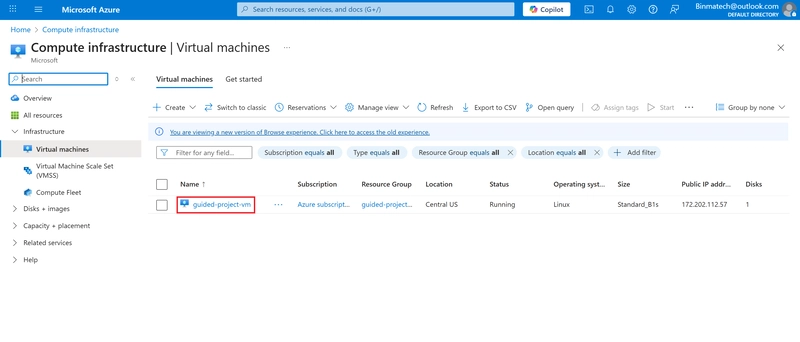
- Select the guided-project-vm virtual machine.
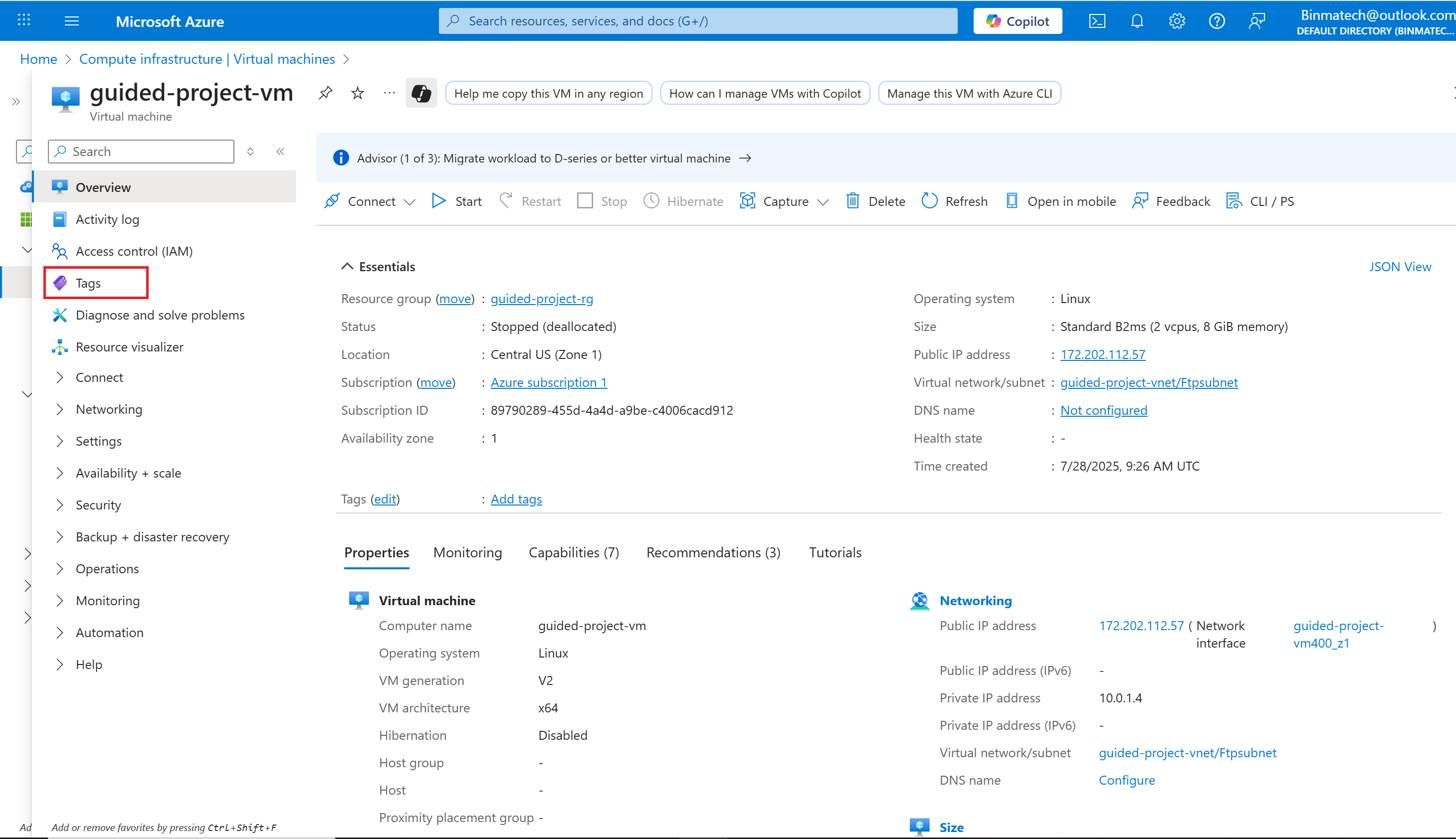
- From the menu pane, select Tags.
- On one line for Name enter Department and for Value enter Customer Service
- On the next line, for Name enter Purpose and for Value enter FTP Server.
- Select Apply.
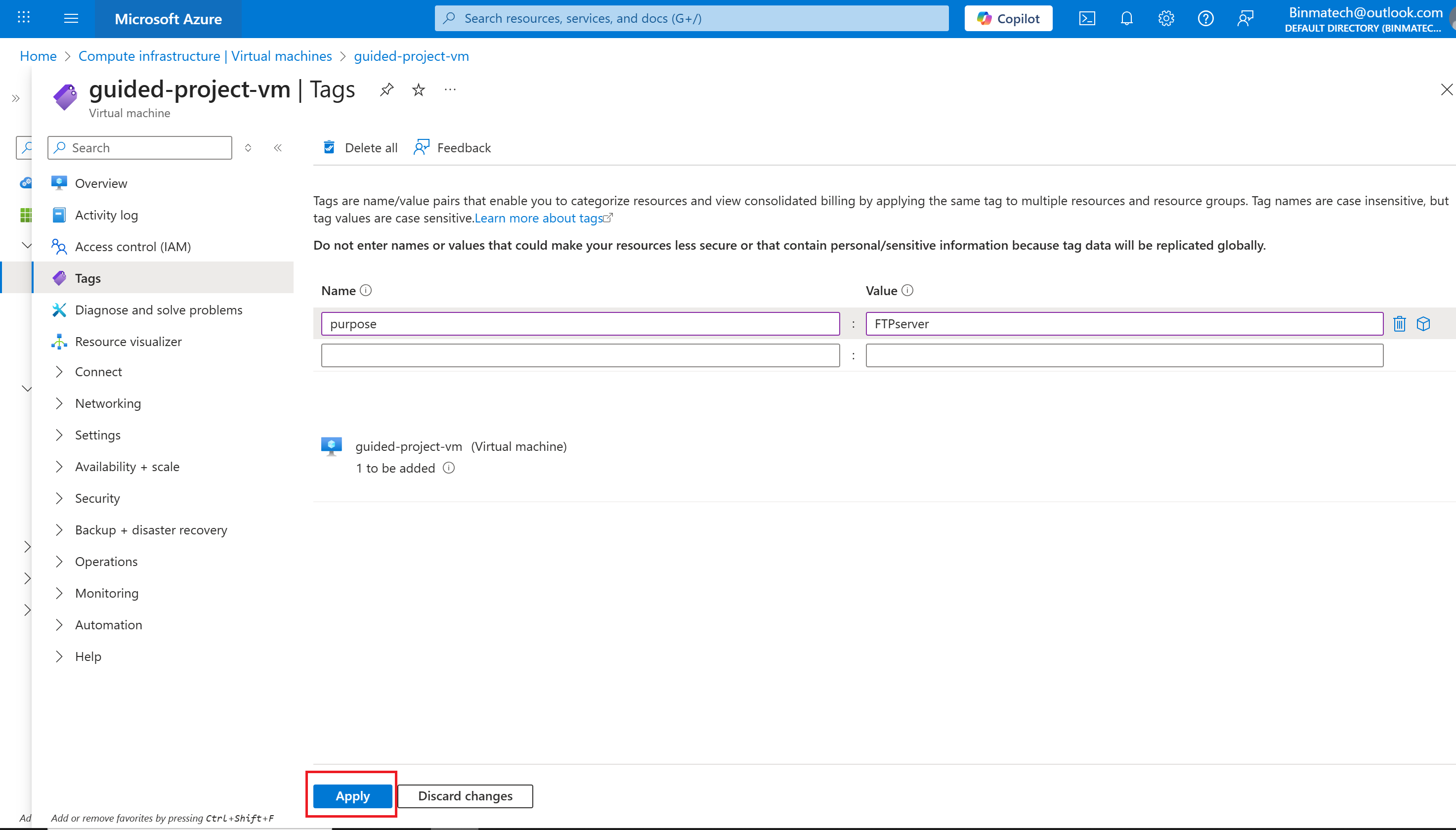
Step 2 Add a resource lock to a VM
Resource lock is use to protect the VM is from deletion and has tags assigned to help track use.
- If necessary, expand the Settings submenu.
- Select Locks.
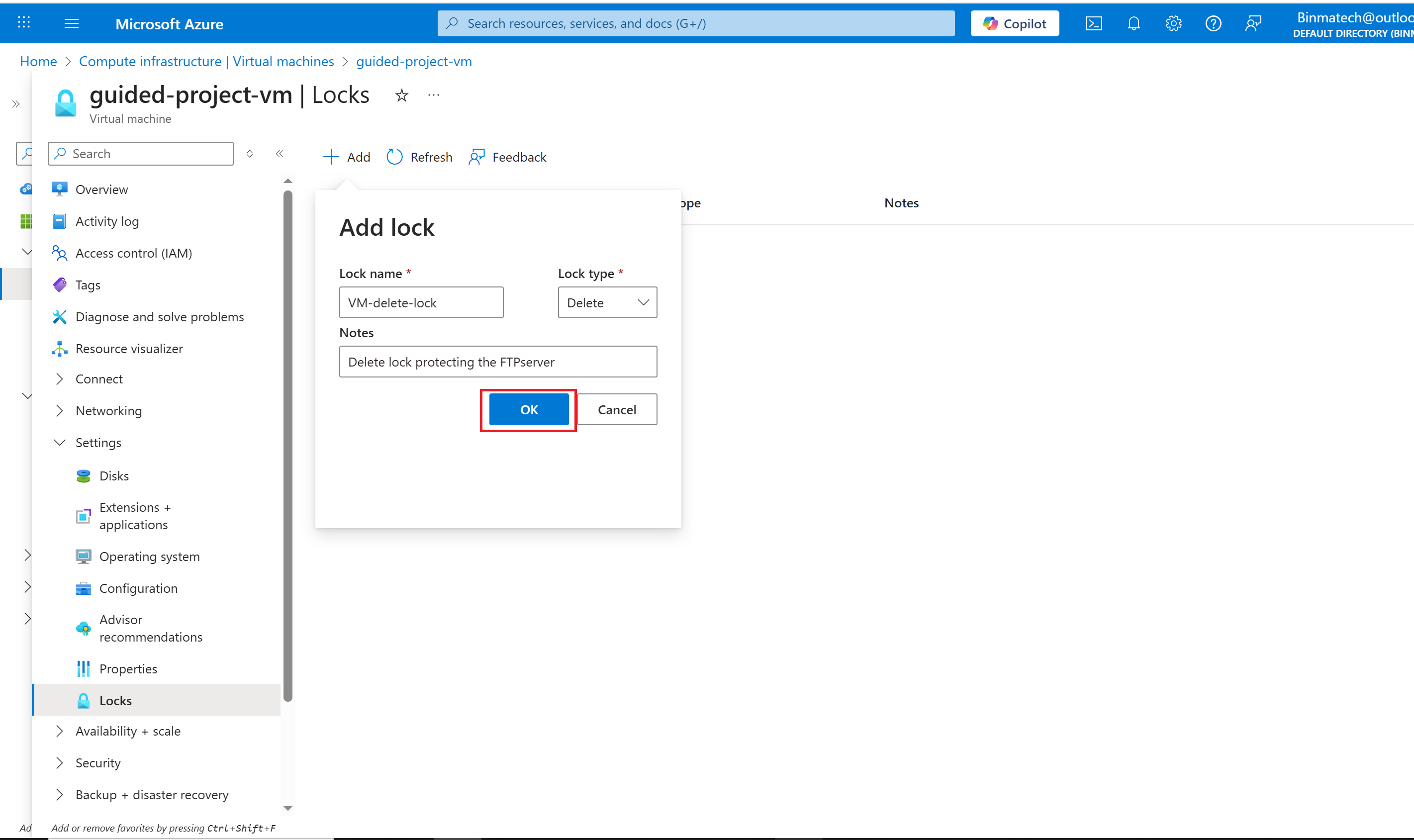
- Select + Add.
- For the name, enter VM-delete-lock.
- For the Lock type, select Delete.
- You may enter a note to help remind you why you created the lock.
- Select OK.
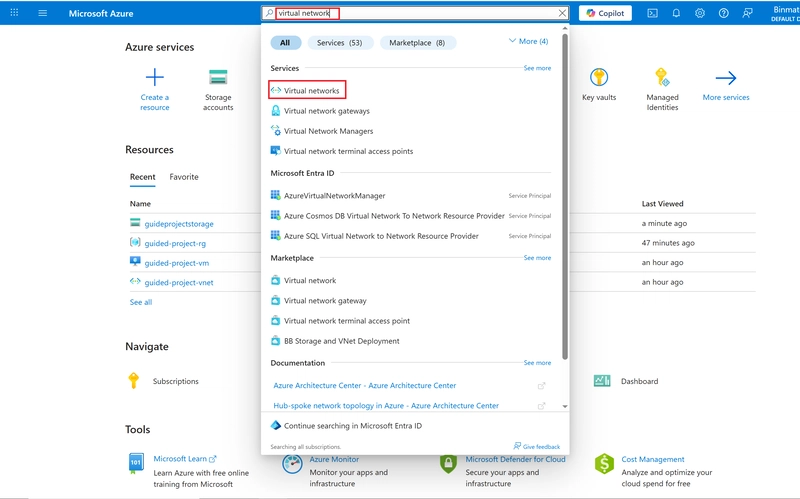
- From the Azure portal home page, in the search box, enter virtual networks.
- Select virtual networks under services.
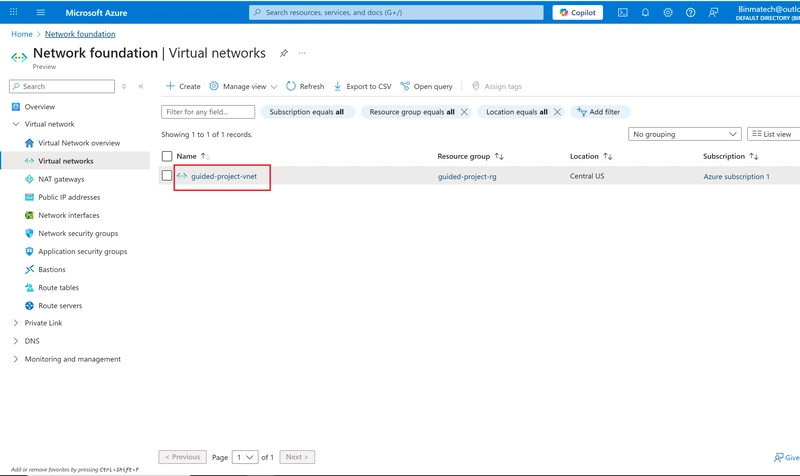
- Select the guided-project-vnet network.
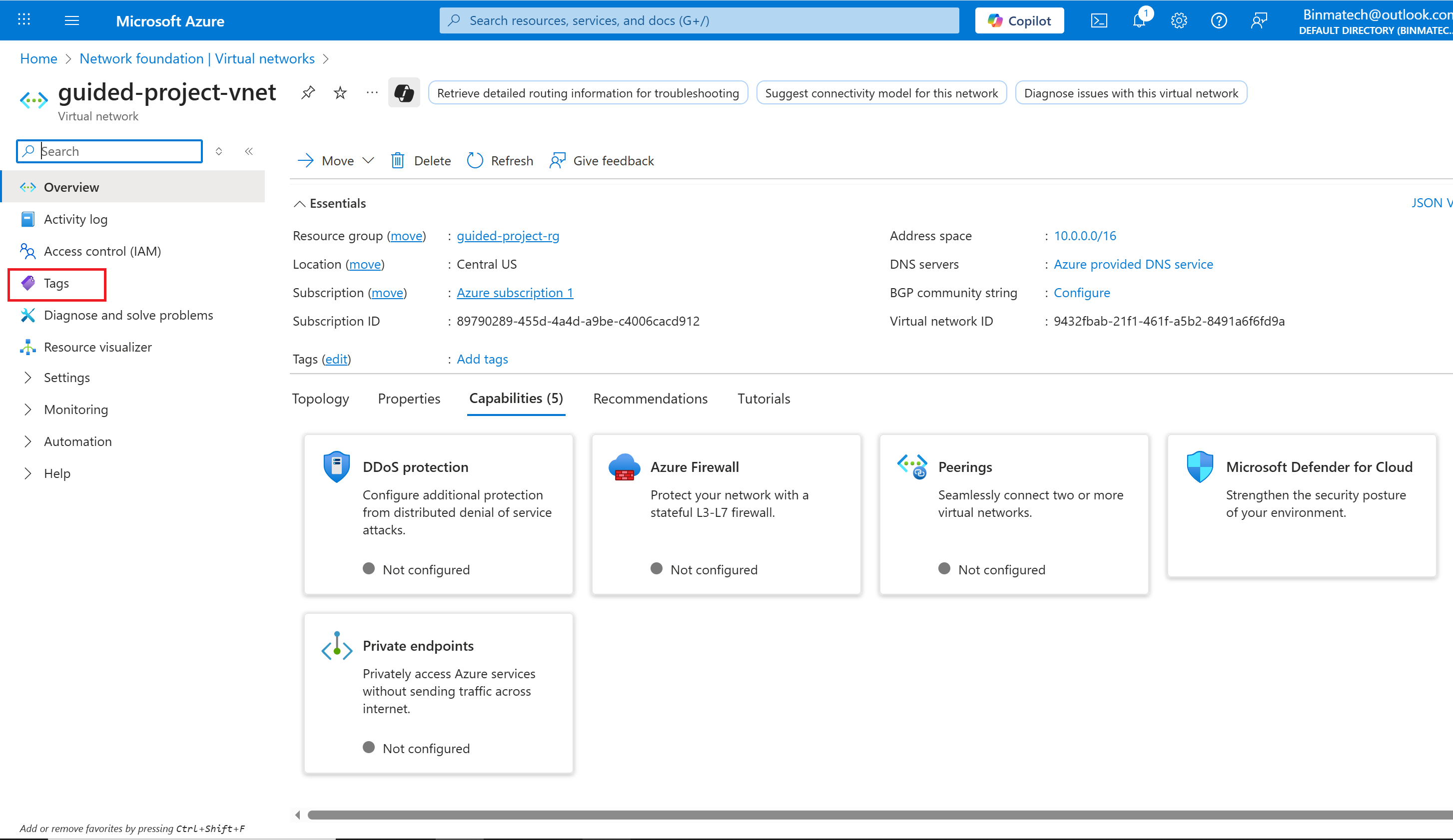
- From the menu pane, select Tags.
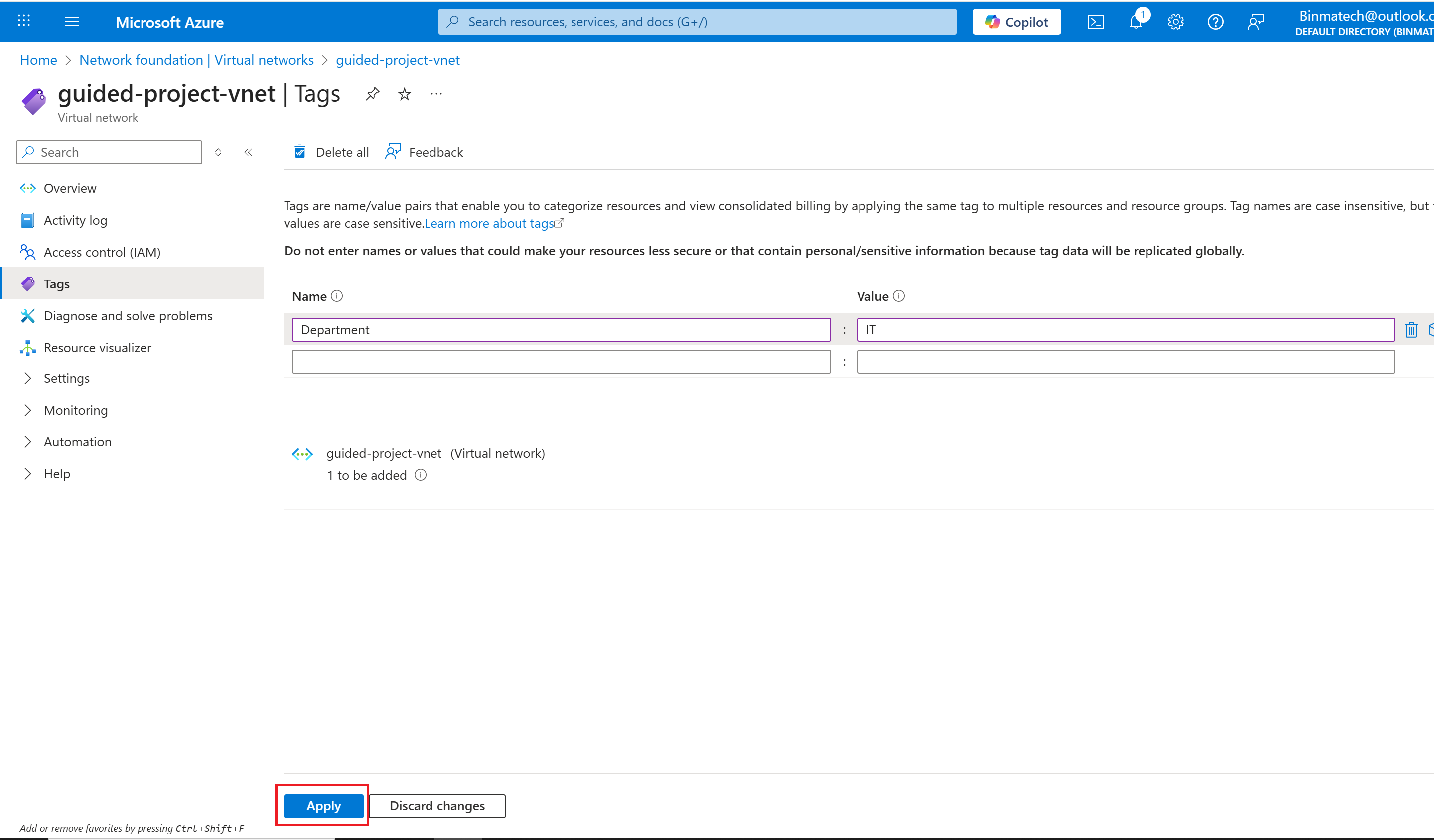
- For the Name select Department.
- For the Value enter IT.
- Select Apply.
Conclusion
In this exercise, you successfully applied tags and resource locks to Azure resources to improve organization and security. By tagging the VM and VNet with relevant metadata (such as Department and Purpose), you enabled easier tracking and management. Additionally, applying a delete lock on the VM ensured that it cannot be accidentally removed, protecting critical infrastructure.
