title: Deploying a Simple App on K3S in AWS EC2 with GitHub Actions & ECR
published: true
date: 2025-09-07 12:15:31 UTC
tags: github,kubernetes,kubernetescluster,githubactions
In this session, we’ll walk through the configuration of K3S on an EC2 instance and deploy a multi-container application with a frontend, backend, and database. The application will run inside a Kubernetes cluster using Deployments and StatefulSets in headless mode. For the setup, we’ll use EC2 to host the cluster, GitHub as our code repository, and GitHub Actions to implement CI/CD.
If you’re an absolute beginner and not familiar with configuring EC2, I recommend checking out my blog here:
Step-by-Step Guide to Launching an EC2 Instance on AWS : For Beginners
This will be an end-to-end project deployment designed for those learning K3S, CI/CD, and Docker. You’ll gain hands-on experience in setting up CI/CD pipelines, writing Dockerfiles, and using Docker Compose. We’ll then move on to deploying the application in K3S, working with Kubernetes manifests, and exploring key components such as Deployments, Services (NodePort and ClusterIP), ConfigMaps, Persistent Volumes (PV), Persistent Volume Claims (PVC), and StatefulSets.
K3S is a lightweight Kubernetes distribution developed by Rancher (now SUSE). It’s designed to be:
Lightweight — small binary, minimal dependencies.
Easy to install — single command installation.
Optimized for edge, IoT, and small clusters — runs well on low-resource machines like Raspberry Pi or small EC2 instances.
Fully compliant — supports all standard Kubernetes APIs and workloads.
In short, K3S simplifies Kubernetes and makes it resource-efficient, making it ideal for single-node clusters, test environments, and learning purposes.
Log login to the EC2 machine and install k3s first:
K3s
You can install K3S on your machine using the following single command:
sudo apt update -y && sudo apt upgrade -y
curl -sfL https://get.k3s.io | sh -
# Check for Ready node, takes ~30 seconds
sudo k3s kubectl get node
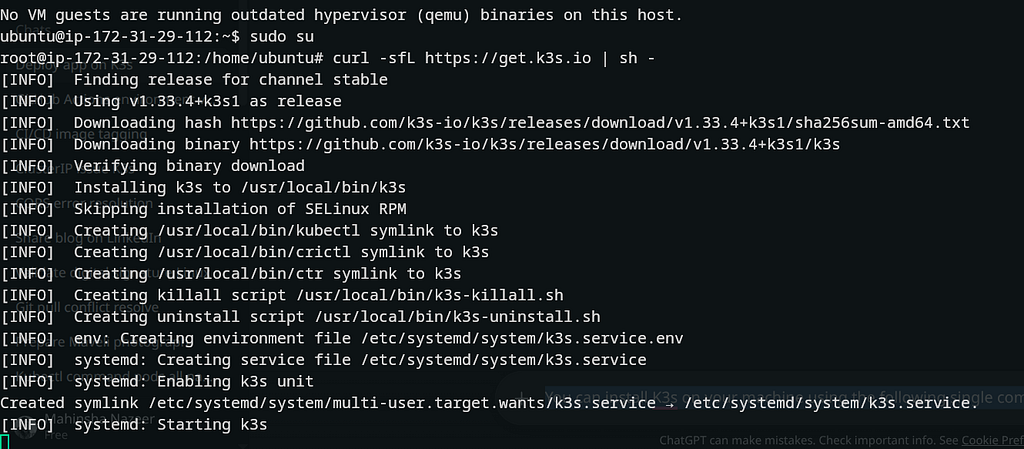
Installation of k3s
Once the installation is completed, the output should be similar to this:

Kubectl node status
Once the cluster is up and running, we can move on to the application. You can refer to the following repository for the demo To-Do List app. Before cloning the repository, make sure Docker is installed on the machine to build and test the application. For installing Docker, refer to the following URL:
Ubuntu
#run the following command first to remove conficting packages

for pkg in docker.io docker-doc docker-compose docker-compose-v2 podman-docker containerd runc; do sudo apt-get remove $pkg; done

# Add Docker's official GPG key:
sudo apt-get update
sudo apt-get install ca-certificates curl
sudo install -m 0755 -d /etc/apt/keyrings
sudo curl -fsSL https://download.docker.com/linux/ubuntu/gpg -o /etc/apt/keyrings/docker.asc
sudo chmod a+r /etc/apt/keyrings/docker.asc

# Add the repository to Apt sources:
echo \
  "deb [arch=$(dpkg --print-architecture) signed-by=/etc/apt/keyrings/docker.asc] https://download.docker.com/linux/ubuntu \
  $(. /etc/os-release && echo "${UBUNTU_CODENAME:-$VERSION_CODENAME}") stable" | \
  sudo tee /etc/apt/sources.list.d/docker.list > /dev/null

sudo apt-get update

#Installing Docker
sudo apt-get install docker-ce docker-ce-cli containerd.io docker-buildx-plugin docker-compose-plugin

#Now verify the installtion.
sudo docker run hello-world
Now, let’s dive into the demo application. The Application Stack:
- Frontend: React.js
- Backend API: Node.js + Express
- Database: MongoDB
- Containerization & Registry: Docker + AWS ECR
- Orchestration & Service Management: Kubernetes (K3s)
Next, let’s clone the application repository to your local machine.
GitHub - mahinshanazeer/docker-frontend-backend-db-to_do_app: Simple Application with Frontend + Backened + DB
git clone https://github.com/mahinshanazeer/docker-frontend-backend-db-to_do_app
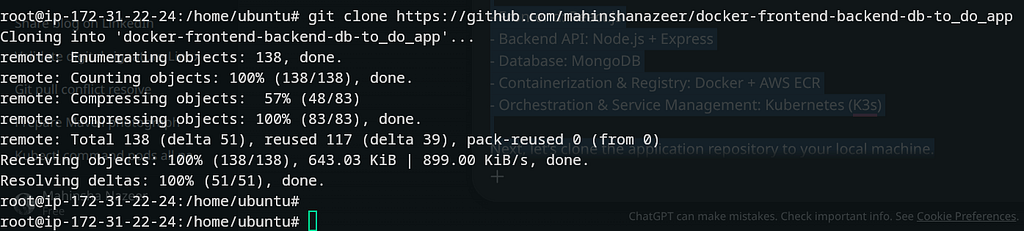
Clone the github application
Once the repository is cloned, switch to the application directory and check for the Docker Compose file.
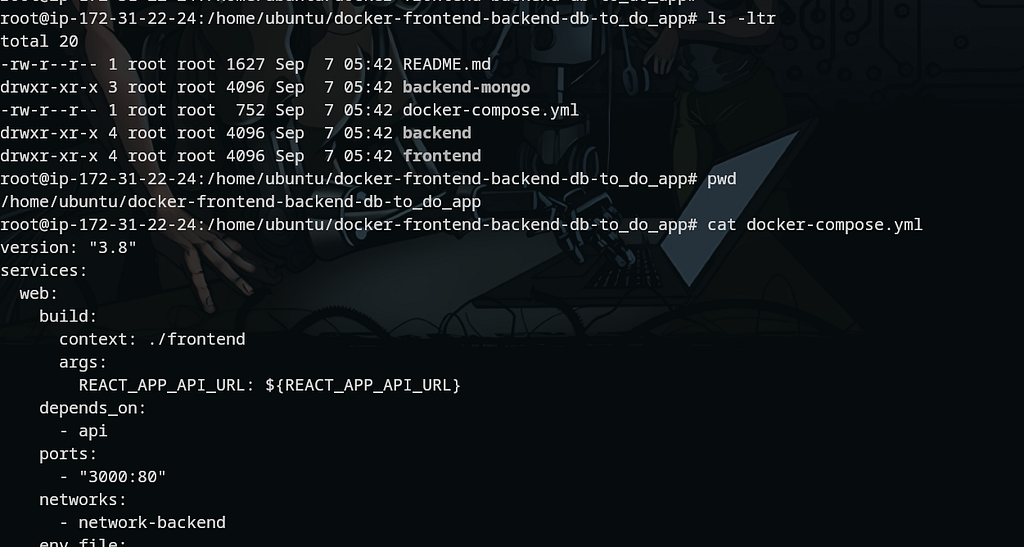
Directory structure
version: "3.8"
services:
  web:
    build:
      context: ./frontend
      args:
        REACT_APP_API_URL: ${REACT_APP_API_URL}
    depends_on:
      - api
    ports:
      - "3000:80"
    networks:
      - network-backend
    env_file:
      - ./frontend/.env

  api:
    build: ./backend
    depends_on:
      - mongo
    ports:
      - "3001:3001"
    networks:
      - network-backend

  mongo:
    build: ./backend-mongo
    image: docker-frontend-backend-db-mongo
    restart: always
    volumes:
      - ./backend-mongo/data:/data/db
    environment:
      MONGO_INITDB_ROOT_USERNAME: admin
      MONGO_INITDB_ROOT_PASSWORD: adminhackp2025
    networks:
      - network-backend

networks:
  network-backend:

volumes:
  mongodb_data:
In the Docker Compose file, you’ll see sections for web, api, and mongo. Let’s dive into each directory and review the Dockerfiles. The Docker Compose file builds the Docker images using the Dockerfiles located in their respective directories.
root@ip-172-31-22-24:/home/ubuntu/docker-frontend-backend-db-to_do_app/frontend# cd /home/ubuntu/docker-frontend-backend-db-to_do_app/frontend
root@ip-172-31-22-24:/home/ubuntu/docker-frontend-backend-db-to_do_app/frontend# cat Dockerfile
# ---------- Build Stage ----------
FROM node:16-alpine AS build

WORKDIR /app

# Copy dependency files first
COPY package*.json ./

# Install dependencies
RUN npm install --legacy-peer-deps

# Copy rest of the app
COPY . .

# Build the React app
RUN npm run build

# ---------- Production Stage ----------
FROM nginx:alpine

# Copy custom nginx config if you have one
# COPY nginx.conf /etc/nginx/conf.d/default.conf

# Copy build output from build stage
COPY --from=build /app/build /usr/share/nginx/html

# Expose port 80
EXPOSE 80

# Start nginx
CMD ["nginx", "-g", "daemon off;"]

***

root@ip-172-31-22-24:/home/ubuntu/docker-frontend-backend-db-to_do_app/backend# cd /home/ubuntu/docker-frontend-backend-db-to_do_app/backend
root@ip-172-31-22-24:/home/ubuntu/docker-frontend-backend-db-to_do_app/backend# cat Dockerfile
FROM node:10-alpine

WORKDIR /usr/src/app

COPY package*.json ./

RUN npm install

COPY . .

EXPOSE 3001

***

root@ip-172-31-22-24:/home/ubuntu/docker-frontend-backend-db-to_do_app/backend# cd /home/ubuntu/docker-frontend-backend-db-to_do_app/backend-mongo/
root@ip-172-31-22-24:/home/ubuntu/docker-frontend-backend-db-to_do_app/backend-mongo# cat Dockerfile
FROM mongo:6.0
EXPOSE 27017
Open the .env file in the frontend directory and update the IP address to your EC2 public IP. This environment variable is used by the frontend to connect to the backend, which runs on port 3001.
vi /home/ubuntu/docker-frontend-backend-db-to_do_app/frontend/.env

#edit the IP address, I have updated my EC2 public IP
~~~
REACT_APP_API_URL=http://54.90.185.176:3001/
~~~
We can also cross-check the total number of APIs using the following commands:
grep -R "router." backend/ | grep "("
grep -R "app." backend/ | grep "("
grep -R "app." backend/ | grep "(" | wc -l
grep -R "router." backend/ | wc -l
Let’s test the application by spinning up the containers. Navigate back to the project’s root directory and run the Docker Compose command.
cd /home/ubuntu/docker-frontend-backend-db-to_do_app
docker compose up -d
Once you run the command, Docker will start building the images and spin up the containers as soon as the images are ready
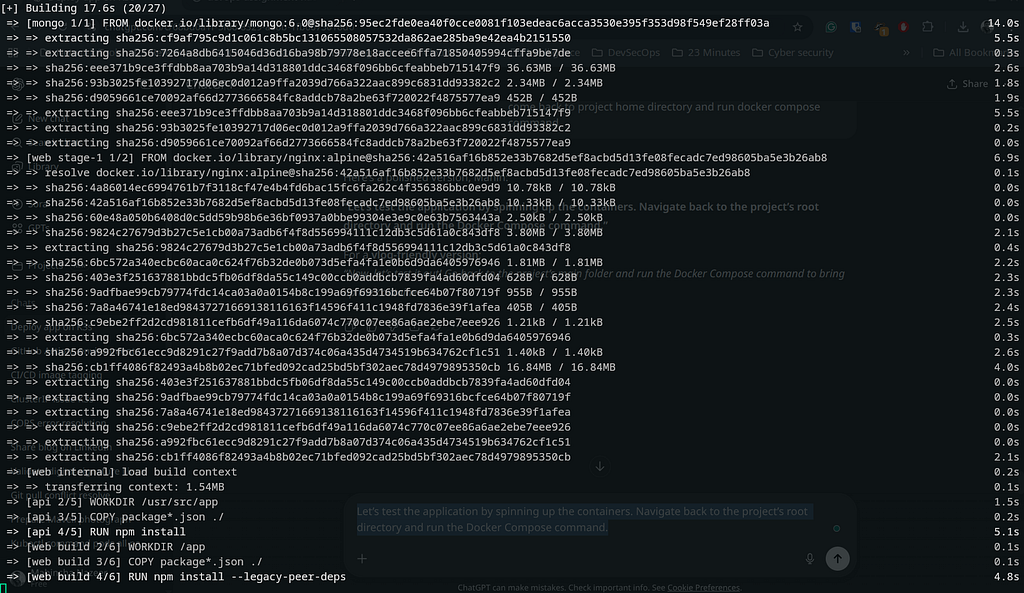
building docker containers
Wait until you see the ‘built’ and ‘created’ messages. Once the containers are up and running, use docker ps -a to verify the status.

build completed and containers started.
docker ps -a

docker processes
Once the Docker containers are up and running, verify that the application is working as expected.
Once the Docker containers are up and running, verify that the application is working as expected. Open the server’s IP address on port 3000. You can confirm the mapped ports in the Docker Compose file or by checking the docker ps -a output. Here, port 3000 is for the frontend web app, port 3001 is for the backend, and MongoDB runs internally on port 27017 without public access. In this example, load the website by entering 54.90.185.176:3000 in your browser.
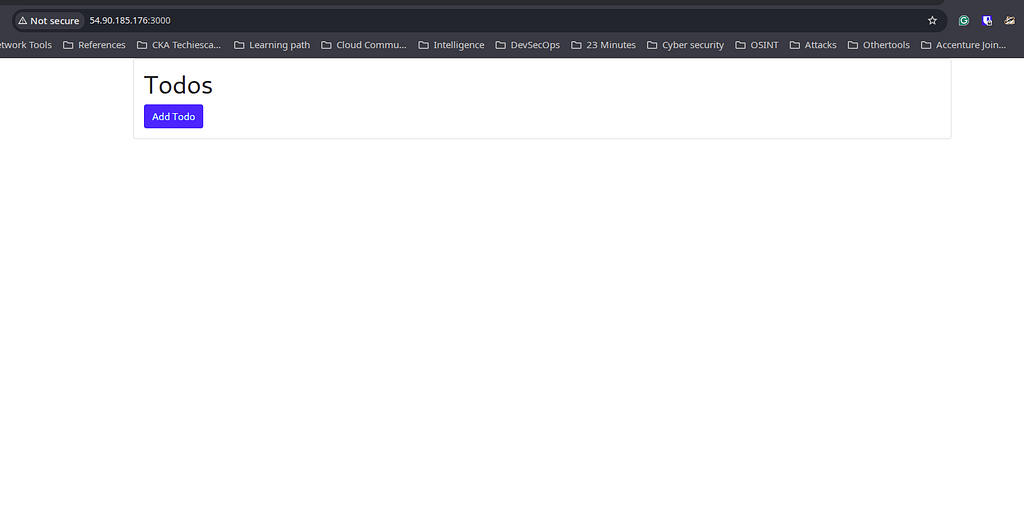
Application interface
If you’re using Chrome, right-click anywhere on the page and open Inspect > Network. Then click on Add Todo to verify that the list updates correctly, and the network console shows a 200 status response
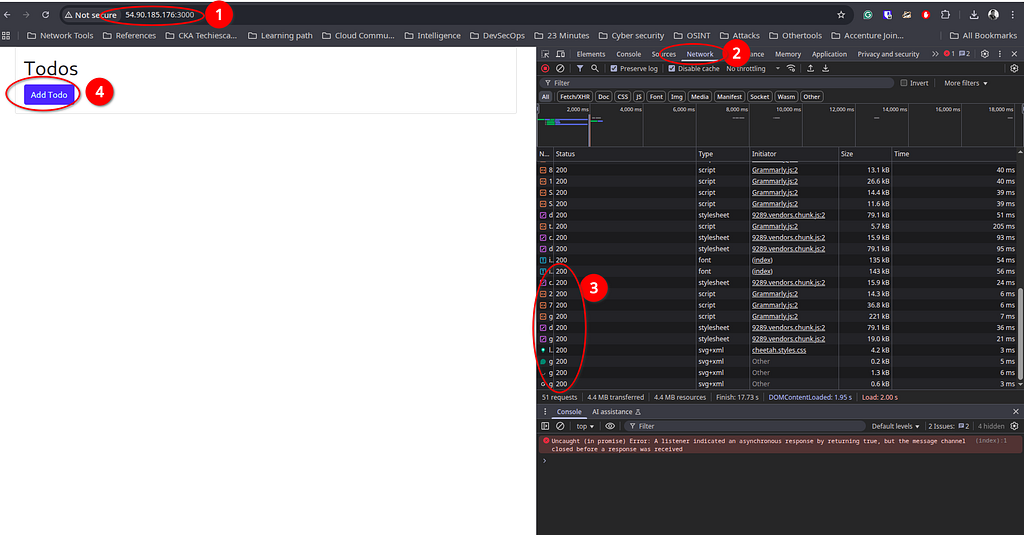
checking the network
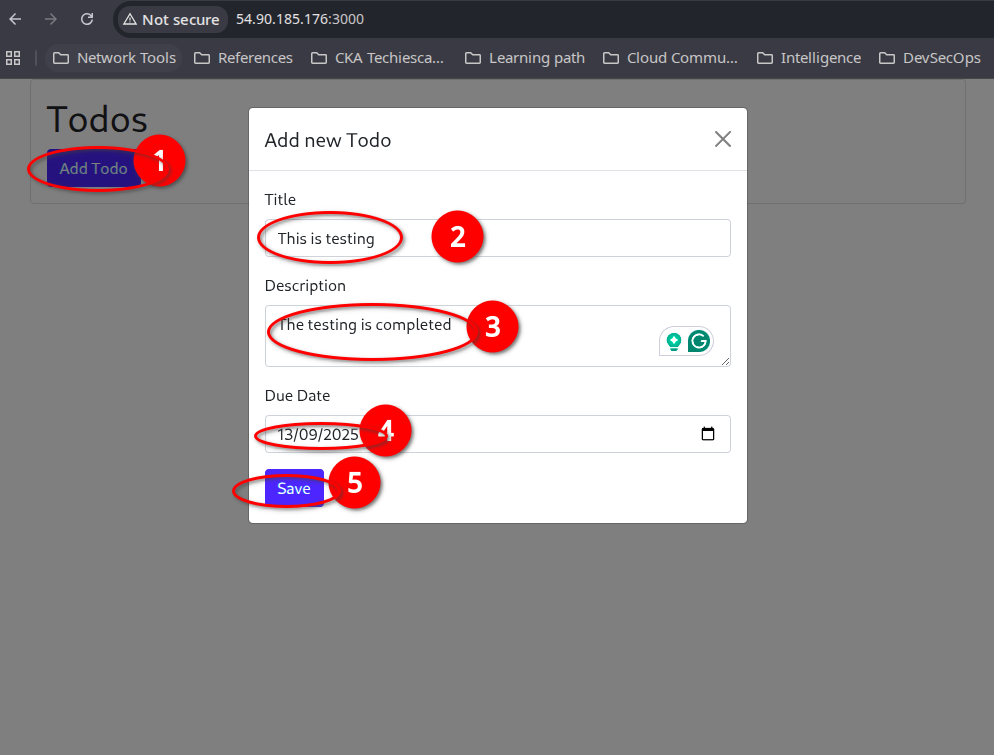
Application testing
Click on the buttons and try to add new file, and verify the status codes:
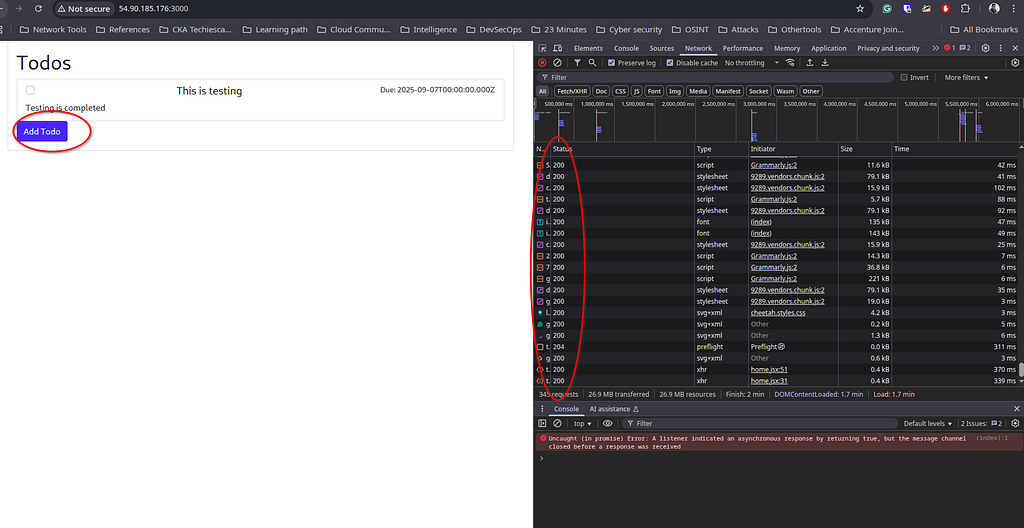
Testing
So far, everything looks good. Now, let’s proceed with the Kubernetes deployment. To configure resources in Kubernetes, we’ll need to create manifest files in YAML format. You can create these files as shown below.
mkdir /home/ubuntu/manifest
touch api-deployment.yaml api-service.yaml image_tag.txt mongo-secret.yaml mongo-service.yaml mongo-statefulset-pv-pvc.yaml web-deployment.yaml web-env-configmap.yaml web-service.yaml
Now edit each file and add the following contents:
- api-deployment.yaml:
Defines how the backend API should run inside the cluster.
- Creates 2 replicas of the API for reliability.
- Uses environment variables from secrets for MongoDB authentication.
- Ensures the API pods always restart if they fail.
Importance: Provides scalability and fault tolerance for the backend service.
Rolling Update: Gradually replaces old pods with new ones. Uses fewer resources, minimal downtime if tuned, but users may hit bad pods if the new version is faulty.
Rolling = efficient and native.
apiVersion: apps/v1
kind: Deployment
metadata:
  name: api
  labels:
    app: api
spec:
  replicas: 2
  selector:
    matchLabels:
      app: api
  strategy:
    type: RollingUpdate
    rollingUpdate:
      maxSurge: 3
      maxUnavailable: 0
  template:
    metadata:
      labels:
        app: api
    spec:
      containers:
        - name: api
          image: 495549341534.dkr.ecr.us-east-1.amazonaws.com/hackp2025:api-20250907111542
          ports:
            - containerPort: 3001
          env:
            - name: MONGO_INITDB_ROOT_USERNAME
              valueFrom:
                secretKeyRef:
                  name: mongo-secret
                  key: username
            - name: MONGO_INITDB_ROOT_PASSWORD
              valueFrom:
                secretKeyRef:
                  name: mongo-secret
                  key: password
      restartPolicy: Always
- api-service.yaml
Exposes the API deployment to the outside world.
- Type NodePort makes the service reachable via :31001.
- Ensures frontend or external clients can communicate with the backend.
Importance: Acts as a bridge between users/frontend and the backend API.
apiVersion: v1
kind: Service
metadata:
  name: api
  labels:
    app: api
spec:
  type: NodePort
  selector:
    app: api
  ports:
    - port: 3001 # internal cluster port
      targetPort: 3001 # container port
      nodePort: 31001 # external port on the node
- mongo-secret.yaml
Stores sensitive information (username & password) in base64-encoded format.
- Used by both the API and MongoDB.
- Keeps credentials out of plain-text manifests.
Importance: Secure way to handle database credentials.
apiVersion: v1
kind: Secret
metadata:
  name: mongo-secret
type: Opaque
data:
  # Base64 encoded values
  username: YWRtaW4= # "admin"
  password: YWRtaW5oYWNrcDIwMjU= # "adminhackp2025"
- mongo-service.yaml
Defines the MongoDB service.
- ClusterIP: None makes it a headless service , required for StatefulSets.
- Allows pods to connect to MongoDB by DNS (e.g., mongo-0.mongo).
Importance: Provides stable networking for MongoDB StatefulSet pods.
apiVersion: v1
kind: Service
metadata:
  name: mongo
  labels:
    app: mongo
spec:
  ports:
    - port: 27017
      targetPort: 27017
  selector:
    app: mongo
  clusterIP: None # headless service for StatefulSet
- mongo-statefulset-pv-pvc.yaml
Handles the database persistence and StatefulSet definition.
- PersistentVolume (PV): Reserves storage (5Gi).
- PersistentVolumeClaim (PVC): Ensures pods can claim storage.
- StatefulSet: Guarantees stable network identity and persistent storage for MongoDB.
Importance: Ensures MongoDB data is preserved even if the pod restarts.
Blue/Green Deployment: Runs two environments (Blue = live, Green = new). Traffic is switched instantly once Green is ready. Near-zero downtime and easy rollback, but requires double resources and is more complex for stateful apps.
Blue/Green = safer cutover, higher cost.
# PersistentVolume for Green MongoDB
apiVersion: v1
kind: PersistentVolume
metadata:
  name: mongo-green-pv
spec:
  capacity:
    storage: 5Gi
  accessModes:
    - ReadWriteOnce
  hostPath:
    path: /root/hackpproject/data-green # separate path for green
  persistentVolumeReclaimPolicy: Retain
  storageClassName: "" # Must match PVC in StatefulSet

---

# StatefulSet for Green MongoDB
apiVersion: apps/v1
kind: StatefulSet
metadata:
  name: mongo-green
  labels:
    app: mongo
    version: green
spec:
  serviceName: mongo # existing headless service
  replicas: 1
  selector:
    matchLabels:
      app: mongo
      version: green
  template:
    metadata:
      labels:
        app: mongo
        version: green
    spec:
      containers:
        - name: mongo
          image: 495549341534.dkr.ecr.us-east-1.amazonaws.com/hackp2025:db-20250907111542
          ports:
            - containerPort: 27017
          env:
            - name: MONGO_INITDB_ROOT_USERNAME
              valueFrom:
                secretKeyRef:
                  name: mongo-secret
                  key: username
            - name: MONGO_INITDB_ROOT_PASSWORD
              valueFrom:
                secretKeyRef:
                  name: mongo-secret
                  key: password
          volumeMounts:
            - name: mongo-data
              mountPath: /data/db
  volumeClaimTemplates:
    - metadata:
        name: mongo-data
      spec:
        accessModes: ["ReadWriteOnce"]
        resources:
          requests:
            storage: 5Gi
        storageClassName: "" # binds to the pre-created PV
- web-deployment.yaml
Defines how the frontend (React.js app) should run.
- Runs 2 replicas for high availability.
- Pulls API endpoint from ConfigMap.
- Resource requests/limits ensure fair scheduling.
Importance: Deploys the UI and links it to the backend API via config.
Rolling Update: Gradually replaces old pods with new ones. Uses fewer resources, minimal downtime if tuned, but users may hit bad pods if the new version is faulty.
Rolling = efficient and native.
apiVersion: apps/v1
kind: Deployment
metadata:
  name: web
  labels:
    app: web
spec:
  replicas: 2
  selector:
    matchLabels:
      app: web
  strategy:
    type: RollingUpdate
    rollingUpdate:
      maxSurge: 3
      maxUnavailable: 0
  template:
    metadata:
      labels:
        app: web
    spec:
      containers:
        - name: web
          image: 495549341534.dkr.ecr.us-east-1.amazonaws.com/hackp2025:web-20250907111542
          ports:
            - containerPort: 3000
              protocol: TCP
          env:
            - name: REACT_APP_API_URL
              valueFrom:
                configMapKeyRef:
                  name: web-env
                  key: REACT_APP_API_URL
          resources:
            requests:
              cpu: "200m"
              memory: "1024Mi"
            limits:
              cpu: "2"
              memory: "2Gi"
      restartPolicy: Always
- web-env-configmap.yaml
Stores non-sensitive environment variables.
- Defines the API endpoint for the frontend (REACT_APP_API_URL).
- Can be updated easily without rebuilding Docker images.
Importance: Provides flexibility to change configuration without redeploying code.
apiVersion: v1
kind: ConfigMap
metadata:
  name: web-env
  labels:
    app: web
data:
  REACT_APP_API_URL: http://98.86.216.31:31001
- web-service.yaml
Exposes the frontend to users.
- Type NodePort makes it available externally at :32000.
- Maps port 3000 (service) → port 80 (container).
Importance: Allows end-users to access the web app from their browser.
apiVersion: v1
kind: Service
metadata:
  name: web
  labels:
    app: web
spec:
  type: NodePort
  selector:
    app: web # Must match Deployment labels
  ports:
    - name: http
      port: 3000 # Service port inside cluster
      targetPort: 80 # Container port
      nodePort: 32000 # External port accessible from outside
We have now moved all the manifest files to /root/hackpproject/manifestfiles.
Once the manifests are finalised, the next step is to create a repository in ECR to push the build artefact images.
Steps to Create an ECR Repository:
1.Log in to AWS Console → Go to the ECR service.
- Create Repository
- Click Create repository.
- Select Private repository.
- Enter repository names — prodimage. (In this case, we are creating a single repository for all those 3 images)
- Leave others as default and click Create repository.
- Authenticate Docker with ECR
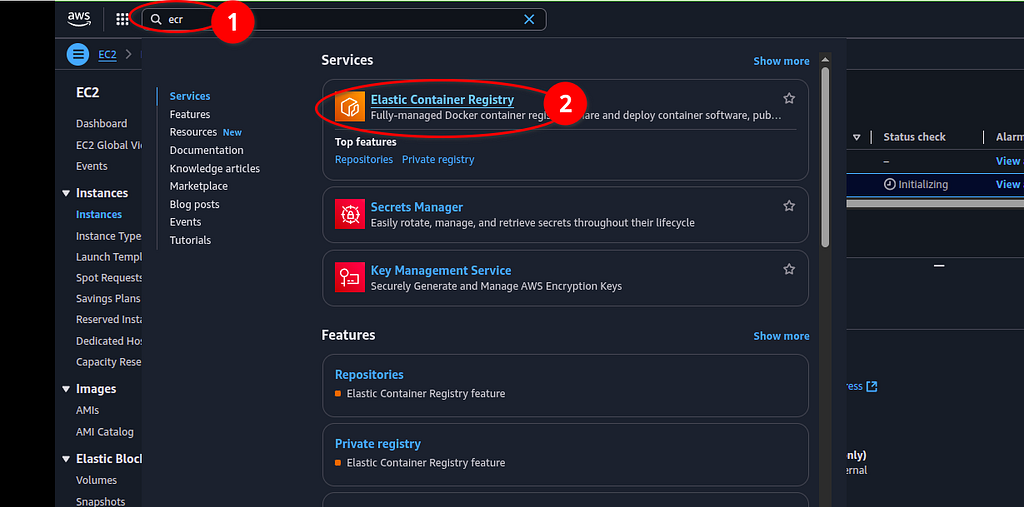
Step 1: Finding the ECR
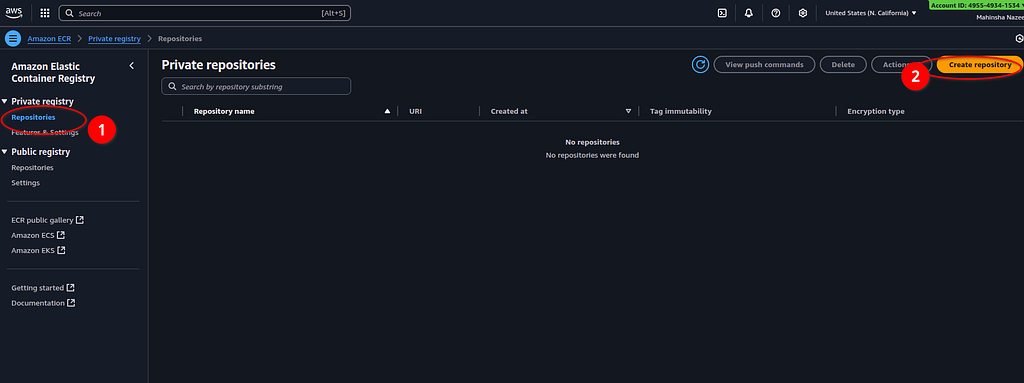
Step 2: Creating Repository
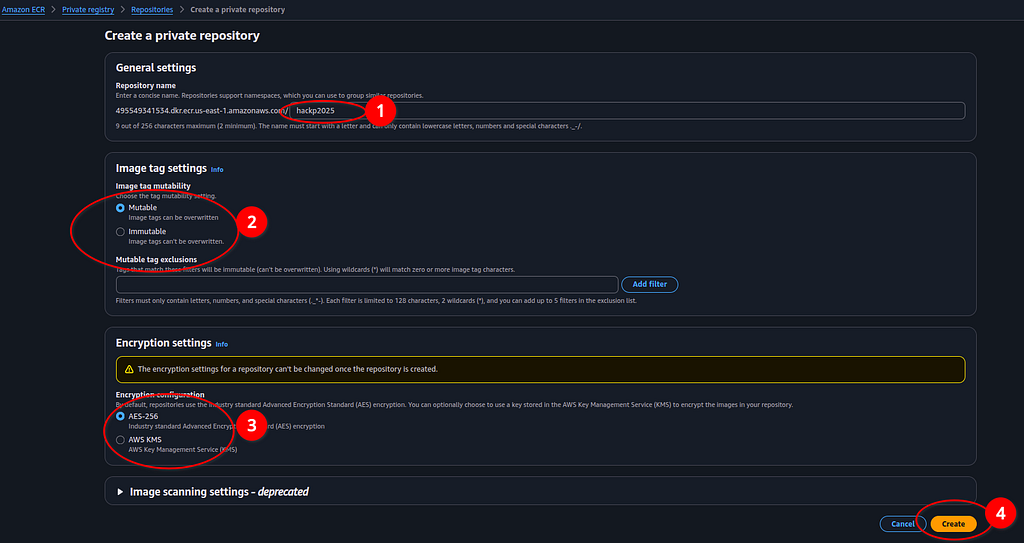
Step 3: onfiguring Repository
Once the registry is created, you can proceed with the CI/CD pipeline.

Reposiroty end point
Now, let’s create a GitHub Actions pipeline to deploy the code to the EC2 K3S cluster. The first step is to configure GitHub Actions with access to the repository, ECR, and the EC2 instance via SSH.
Navigate to the project directory and create a folder named ‘.github’. Inside this folder, create a file named ‘ci-cd.yml’.
mkdir .github
cd .github
touch ci-cd.yml
vi ci-cd.yml
The ci-cd.yml file is the core configuration file for GitHub Actions that defines your CI/CD pipeline. Now use the following script in that ci-cd.yml file:
name: CI/CD Pipeline

on:
  push:
    branches:
      - main

jobs:
  build-and-deploy:
    runs-on