title: Meeting you where you are at: Gemini CLI on AWS CloudShell
published: true
series: AWS
date: 2026-03-04 16:43:22 UTC
tags: googlecloudplatform,aws,awscloudshell,geminicli
This article covers installing and Running Gemini CLI cross-cloud. The Amazon Cloud Shell provides a basic Linux environment that can support running Gemini CLI.
What is Gemini CLI?
The Gemini CLI is an open-source, terminal-based AI agent from Google that allows developers to interact directly with Gemini models, such as Gemini 2.5 Pro, for coding, content creation, and workflow automation. It supports file operations, shell commands, and connects to external tools via the Model Context Protocol (MCP).
The full details on Gemini CLI are available here:
Build, debug & deploy with AI
Amazon Cloud Shell
AWS CloudShell is a browser-based, pre-authenticated terminal that allows users to securely manage, explore, and interact with AWS resources directly from the AWS Management Console. It comes pre-installed with the AWS CLI, popular programming languages (Python, Node.js), and developer tools, removing the need for local configuration.
The full background information on the Cloud Shell is here:
Browser-based Shell - AWS CloudShell - AWS
Why would I want Gemini CLI on AWS? Isn’t that a Google Thing?
Yes- Gemini CLI leverages the Google Cloud console and Gemini models but it is also open source and platform agnostic. Many applications are already cross-cloud so this enables familiar tools to be run natively on Amazon AWS.
Activating Amazon CloudShell
The AWS CloudShell comes preinstalled on all AWS Accounts.
To access the shell— click the Terminal Icon in the upper right hand corner of the console:

Then activate the full shell:
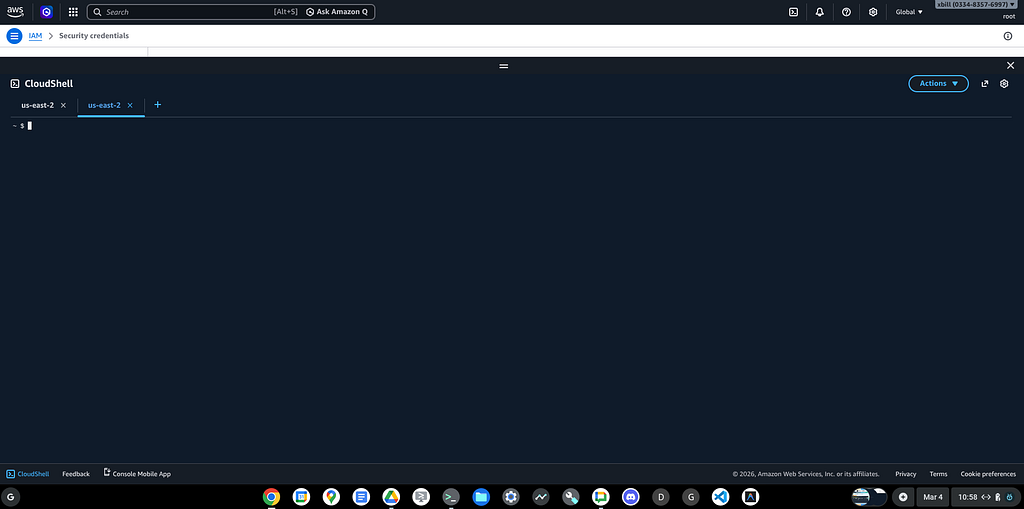
Note- the disk space in the environment is limited to 1GB.
Verifying Node.js in AWS Cloud Shell
The version of Node.js is verified that it is recent enough to support Gemini CLI:
~ $ npm --version
10.8.2
~ $ node --version
v20.20.0
Gemini CLI Installation
You can then download the Gemini CLI :
sudo npm install -g @google/gemini-cli
You will see the log messages:
npm warn deprecated prebuild-install@7.1.3: No longer maintained. Please contact the author of the relevant native addon; alternatives are available.
npm warn deprecated node-domexception@1.0.0: Use your platform's native DOMException instead
npm warn deprecated glob@10.5.0: Old versions of glob are not supported, and contain widely publicized security vulnerabilities, which have been fixed in the current version. Please update. Support for old versions may be purchased (at exorbitant rates) by contacting i@izs.me

added 624 packages in 37s

175 packages are looking for funding
  run `npm fund` for details
npm notice
npm notice New major version of npm available! 10.8.2 -> 11.11.0
npm notice Changelog: https://github.com/npm/cli/releases/tag/v11.11.0
npm notice To update run: npm install -g npm@11.11.0
npm notice
~ $
Testing the Gemini CLI Environment
Once you have all the tools and the correct Node.js version in place- you can test the startup of Gemini CLI. You will need to authenticate with a Key or your Google Account:
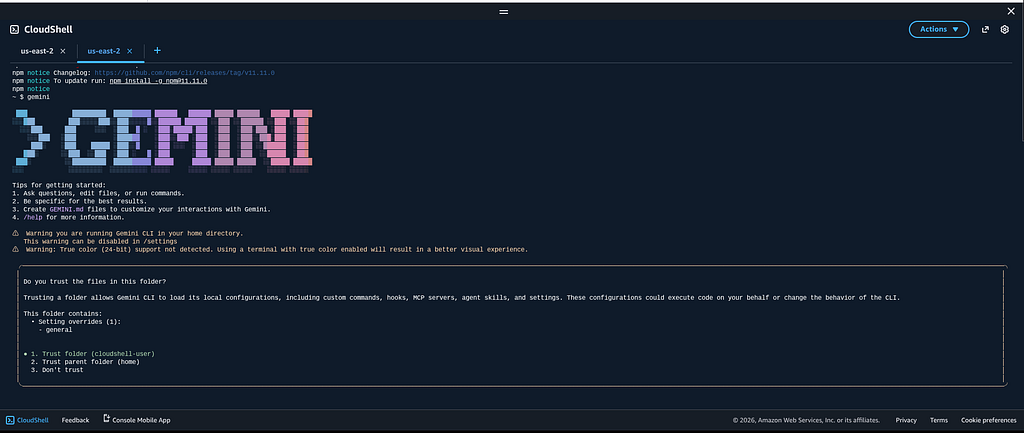
gemini
Then you will get full access to the CLI:
Authentication
Several authentication options are available. To use an existing Code Assist licence — authenticate with a Google Account:
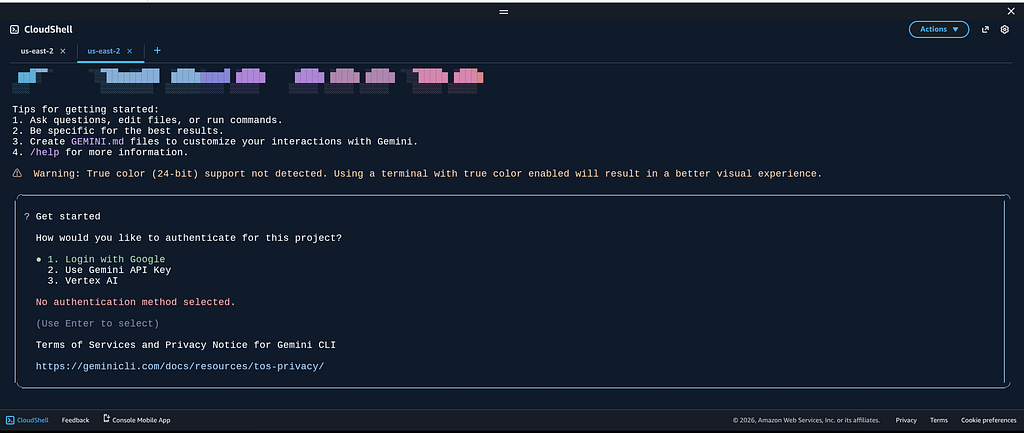
Then set the GOOGLE_CLOUD_PROJECT to a valid project setup on the Google Cloud console:
~ $ export GOOGLE_CLOUD_PROJECT=comglitn
~ $
Other options include Google Cloud API Key that can be generated directly from the Google Cloud Console.
Using Gemini CLI on AWS
Once installed- Gemini CLI has direct access to the Cloud Shell environment:
Logged in with Google: xbill@glitnir.com /auth
Plan: Gemini Code Assist Standard
Tips for getting started:
1. Ask questions, edit files, or run commands.
2. Be specific for the best results.
3. Create GEMINI.md files to customize your interactions with Gemini.
4. /help for more information.
 > what does the aws command line tool do?
✦ The AWS Command Line Interface (CLI) is a unified tool that allows you to manage and automate your Amazon Web Services (AWS) resources directly from your terminal.

  Core Functions
   * Service Management: Control almost all AWS services (S3, EC2, Lambda, IAM, etc.) using commands instead of the web-based Management Console.
   * Automation & Scripting: Incorporate AWS operations into shell scripts (Bash, PowerShell, Zsh) to automate repetitive tasks like backups, infrastructure deployment,
     or scaling.
   * Resource Manipulation: Perform actions such as uploading/downloading files from S3 buckets, starting/stopping EC2 instances, and managing security credentials.
   * Direct API Access: It acts as a wrapper around the AWS SDKs, providing a direct way to interact with AWS public APIs.

  Example Commands
   * aws s3 ls: List your S3 buckets.
   * aws ec2 describe-instances: View details about your virtual servers.
   * aws configure: Set up your access keys and default region.
and AWS operations can be performed directly from Gemini CLI:
 > aws s3 ls
✦ I will check if the AWS CLI is installed and then attempt to list your S3 buckets.

╭───────────────────────────────────────────────────────────────────────────────────────────────────────────────────────────────────────────────────────────────────────╮
│ Action Required │
│ │
│ ? Shell aws --version && aws s3 ls [current working directory /home/cloudshell-user] (Check for AWS CLI installation and list S3 buckets.) │
│ │
│ aws --version && aws s3 ls │
│ Allow execution of: 'aws, aws'? │
│ │
│ 1. Allow once │
│ ● 2. Allow for this session │
│ 3. No, suggest changes (esc) │
│ │
╰───────────────────────────────────────────────────────────────────────────────────────────────────────────────────────────────────────────────────────────────────────╯
─────────────────────────────────────────────────────────────────────────────────────────────────────────────────────────────────────────────────────────────────────────
with the results returned:
✦ I will check if the AWS CLI is installed and then attempt to list your S3 buckets.

╭───────────────────────────────────────────────────────────────────────────────────────────────────────────────────────────────────────────────────────────────────╮
│ ✓ Shell aws --version && aws s3 ls [current working directory /home/cloudshell-user] (Check for AWS CLI installation and list S3 buckets.) │
│ │
│ aws-cli/2.33.30 Python/3.13.11 Linux/6.1.161-183.298.amzn2023.x86_64 exec-env/CloudShell exe/x86_64.amzn.2023 │
│ 2020-07-03 04:30:32 gitnir1 │
│ 2026-02-01 10:31:45 glitnir │
│ 2020-07-08 13:25:09 xbill99 │
╰───────────────────────────────────────────────────────────────────────────────────────────────────────────────────────────────────────────────────────────────────╯
✦ The AWS CLI is installed (version 2.33.30) and returned the following S3 buckets:

   - gitnir1 (Created: 2020-07-03)
   - glitnir (Created: 2026-02-01)
   - xbill99 (Created: 2020-07-08)
Session Results
Because the Gemini CLI Installation is the same across environments- all session information is consistent:
╭───────────────────────────────────────────────────────────────────────────────────────────────────────────────────────────────────────────────────────────────────────╮
│ │
│ Agent powering down. Goodbye! │
│ │
│ Interaction Summary │
│ Session ID: bf164e83-6373-458a-8ca3-91b5bdbf1fe3 │
│ Tool Calls: 3 ( ✓ 2 x 1 ) │
│ Success Rate: 66.7% │
│ User Agreement: 100.0% (3 reviewed) │
│ │
│ Performance │
│ Wall Time: 8m 53s │
│ Agent Active: 42.0s │
│ » API Time: 27.6s (65.6%) │
│ » Tool Time: 14.4s (34.4%) │
│ │
│ Model Usage │
│ Model Reqs Input Tokens Cache Reads Output Tokens │
│ ──────────────────────────────────────────────────────────────────────────── │
│ gemini-2.5-flash-lite 4 5,109 0 196 │
│ gemini-3-flash-preview 6 8,126 31,994 479 │
│ │
│ Savings Highlight: 31,994 (70.7%) of input tokens were served from the cache, reducing costs. │
│ │
│ Tip: Resume a previous session using gemini --resume or /resume │
╰───────────────────────────────────────────────────────────────────────────────────────────────────────────────────────────────────────────────────────────────────────╯
Summary
Gemini CLI was downloaded and tested from the AWS Cloud Shell. This is a complete fully working version of Gemini CLI with all the standard features like extensions, agent skills, and a familiar interface. Then, Gemini CLI was used to perform AWS native operations using the built-in AWS tooling. This is a first step to enabling cross platform projects with both Google Cloud and AWS.